Learn to Connect Jupyter Notebook (JupyterLab: A Next-Generation Notebook Interface) with Starrocks DB (An Open-Source, High-Performance Analytical Database)
JupyterLab is the latest web-based interactive development environment for notebooks, code, and data. Its flexible interface allows users to configure and arrange workflows in data science, scientific computing, computational journalism, and machine learning. A modular design invites extensions to expand and enrich functionality
An Open-Source, High-Performance Analytical Database
How to Connect Jupyter Notebook with StarrocksDB.
Kindly Install jupysql and pymysql before connecting with Starrocks DB via pip.
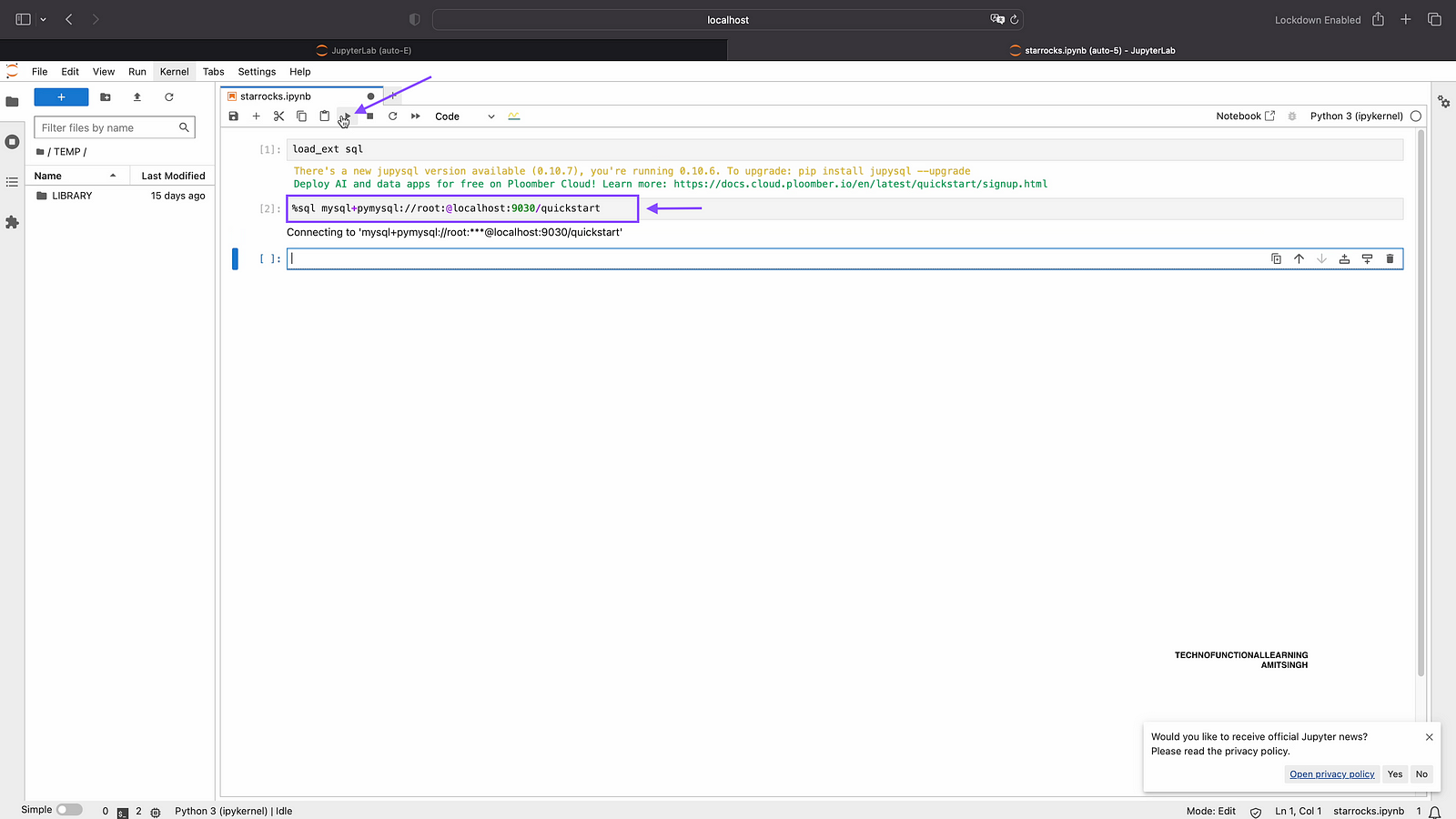
Step 01: Type command below command and click on run
load_ext sql

Step 02: Enter Connection URL as shown below, Kindly note that provide your own credential of database and host as per your system based on (On-Premise or Cloud)
%sql mysql+pymysql://root:@localhost:9030/quickstart
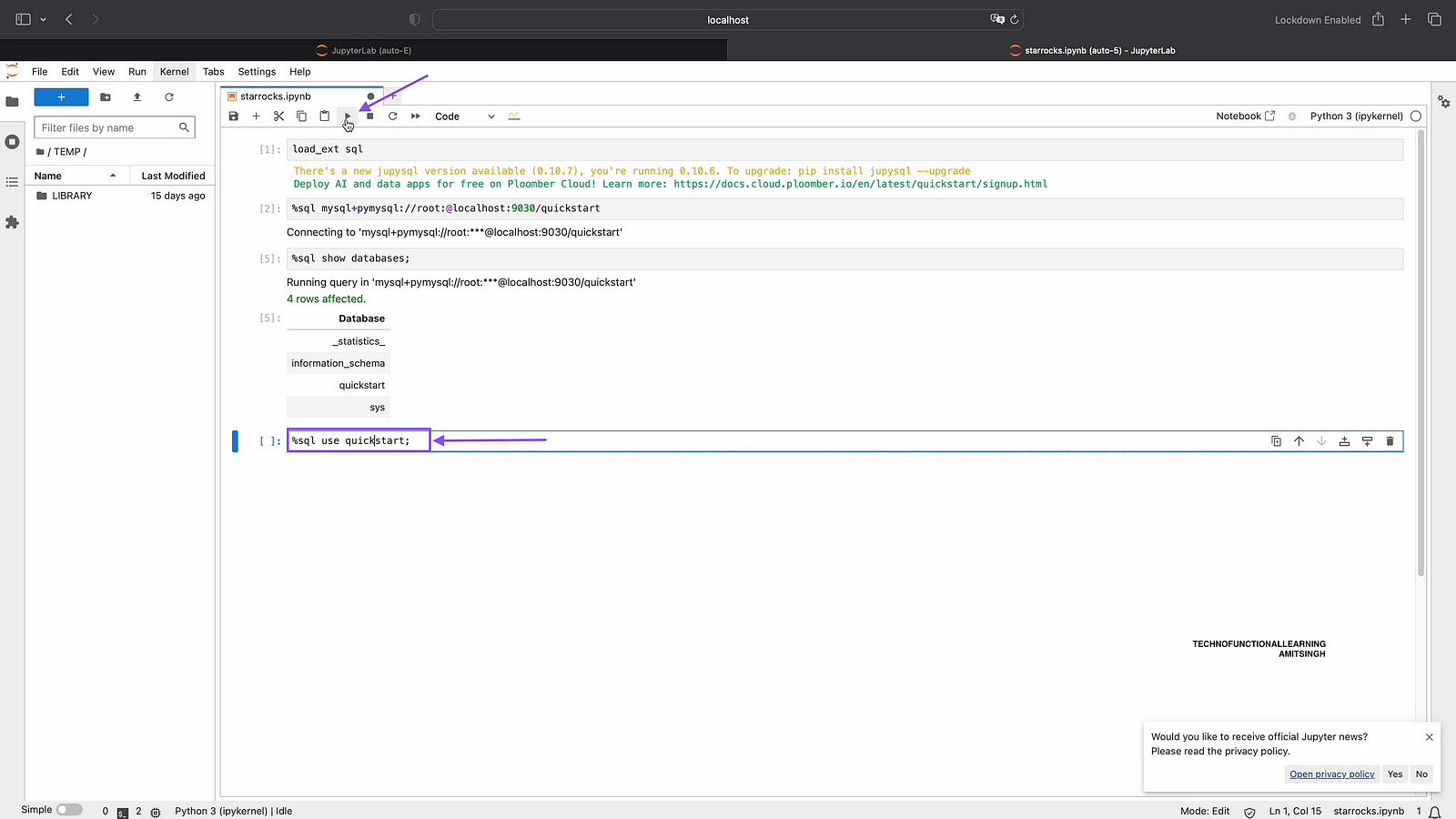
Step 03 Now after connecting with Starrocks DB, Type below command to show databases.
%sql show databases;

Step 04: Once you have database name, then you can use it to get more information.
Type below command to use database (use database name as per your system).
%sql use quickstart;
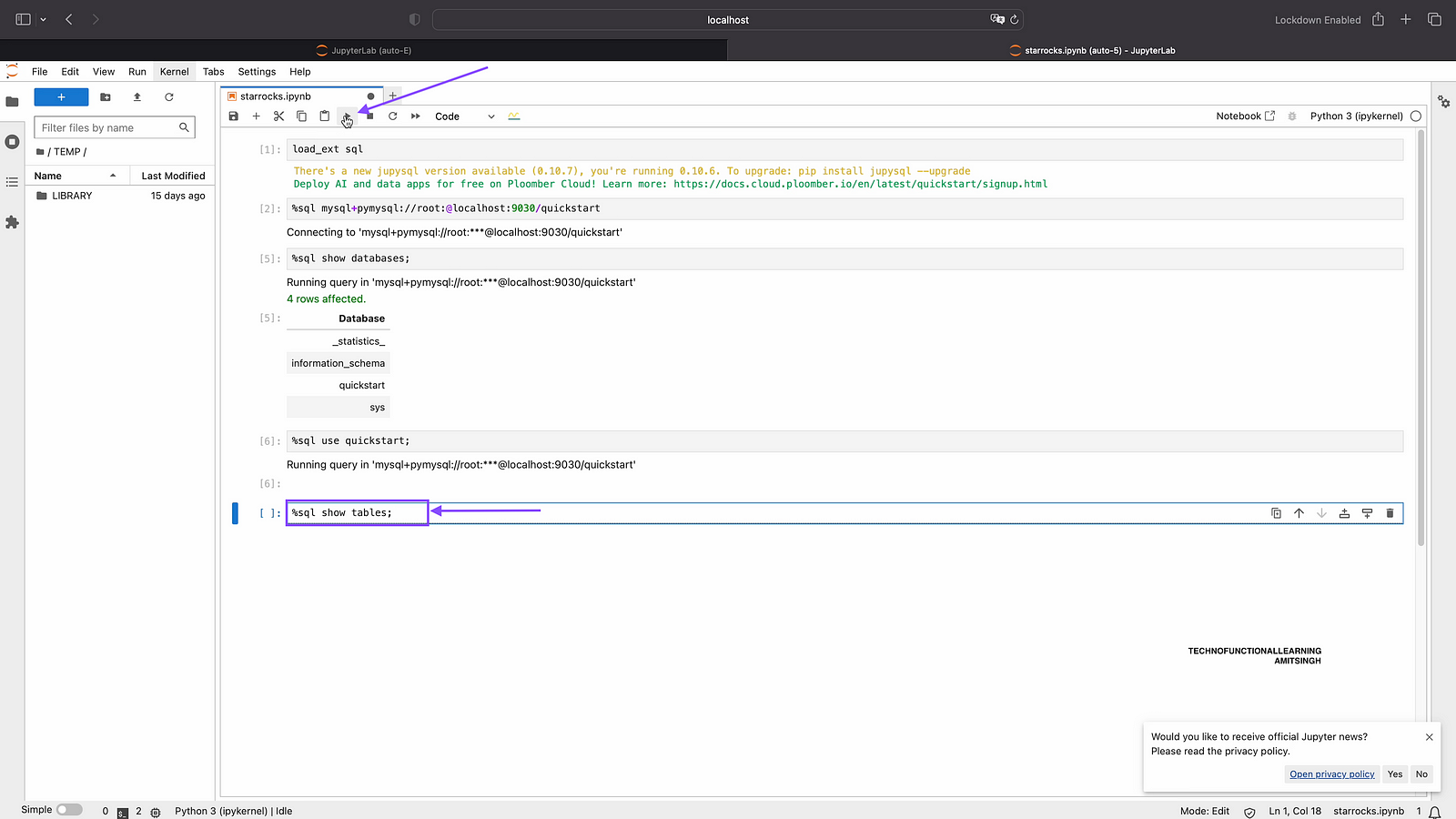
Step 05: Now you can type below commands to see tables within database quickstart (use your own database name while writing query)
%sql show tables;
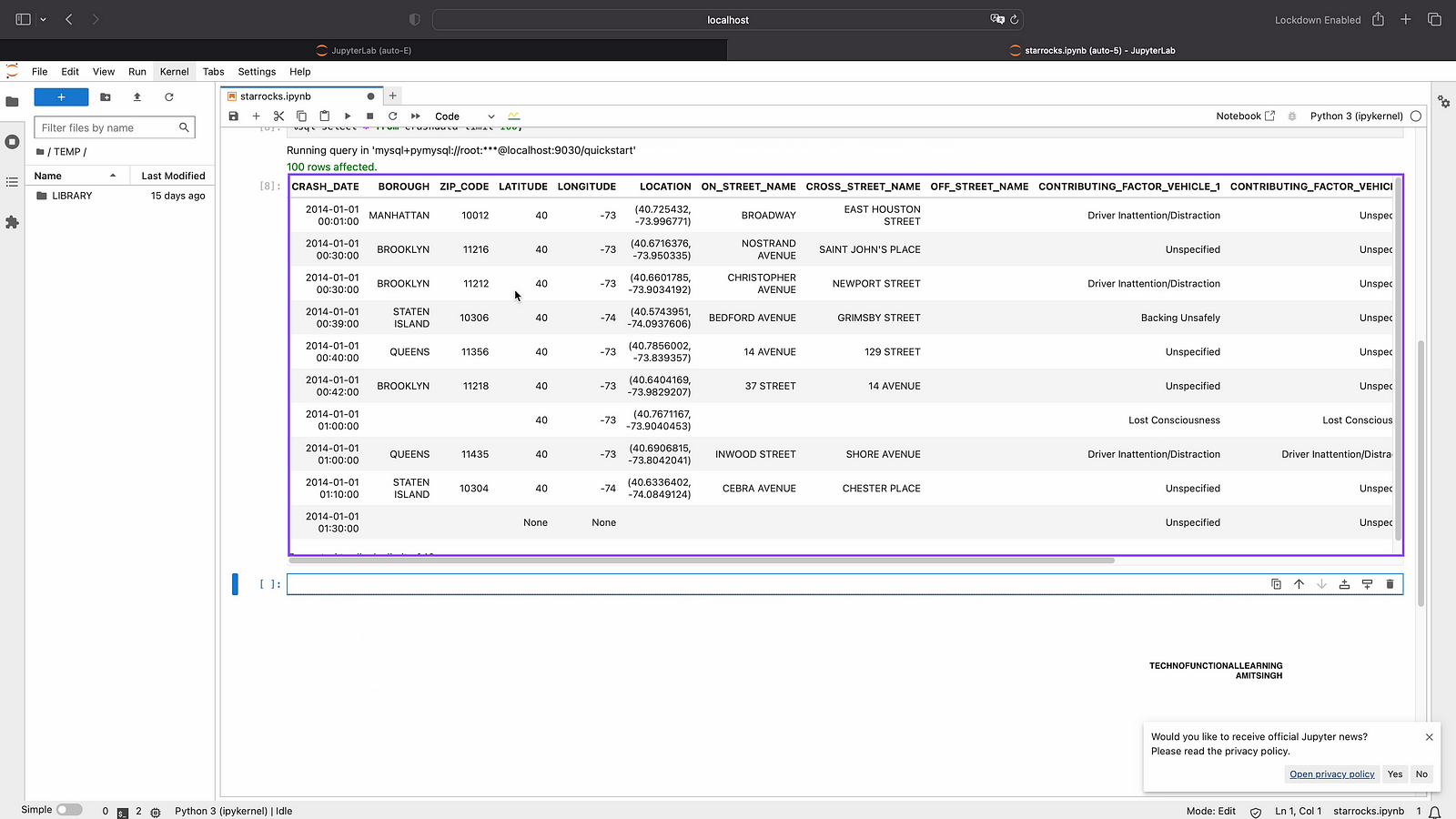
Step 06: Now you can run select command to see some data from database tables by writing below command without specifying any specific columns.
%sql select * from crashdata limit 100;
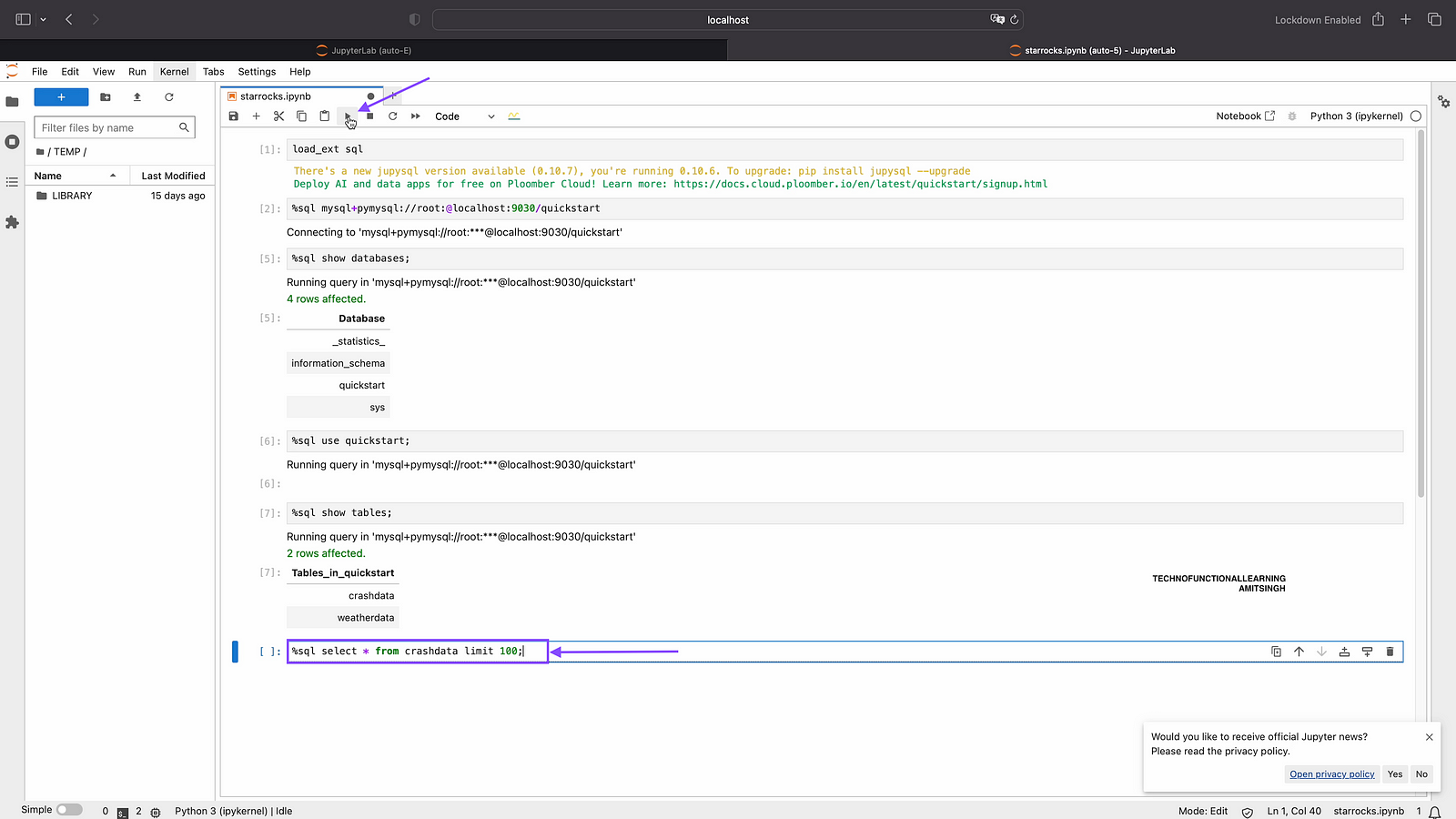
Step 07: Now you can see table data in your notebook.
 TechnoFunctionalLearning