Learn to Connect Apache Netbeans (Development Environment, Tooling Platform and Application Framework) with Starrocks DB (An Open-Source, High-Performance Analytical Database)
What is Apache Netbeans ?
Fast & Smart Editing
Apache NetBeans is much more than a text editor. It highlights source code syntactically and semantically, lets you easily refactor code, with a range of handy and powerful tools.
Java, JavaScript, PHP, HTML5, CSS, and More
Apache NetBeans provides editors, wizards, and templates to help you create applications in Java, PHP and many other languages.
Cross Platform
Apache NetBeans can be installed on all operating systems that support Java, i.e, Windows, Linux, Mac OSX and BSD. Write Once, Run Anywhere, applies to NetBeans too.
Learn more on Apache Netbeans Website
Check Apache Netbeans Github Repository
Starrocks DB
An Open-Source, High-Performance Analytical Database
Fast, Fresh, and Flexible: Analytics With No Compromise
Extremely fast query performance in all scenarios
Running queries against a single table or multiple tables, querying local tables or data stored in data lakes, with StarRocks, experience 3 to 10 times better performance than other popular solutions.
Real-time Analytics: Guaranteed data freshness
From streaming data to change data capture, StarRocks guarantees the latest data and is ready to provide fresh insight.
Analytics with flexibility: Unleash the full potential of your data
A database that adapts to your use cases, StarRocks provides the flexibility to scale your business on demand with ease.
Learn more about Starrocks DB on official website
or check Starrocks Github Repository
How to Connect Apache Netbeans with Starrocks DB
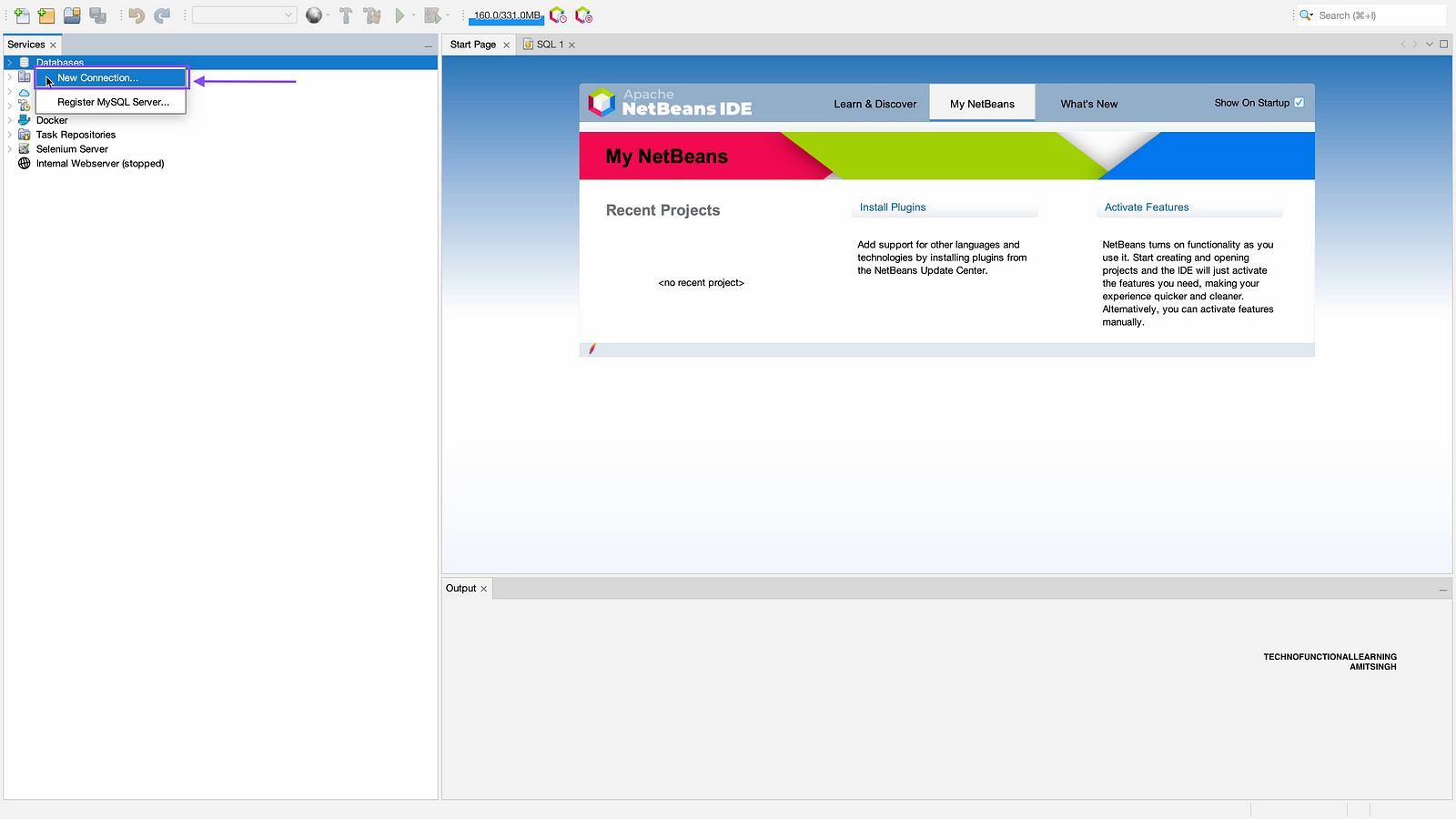
Step 01: right click on databases and then click on new connection.
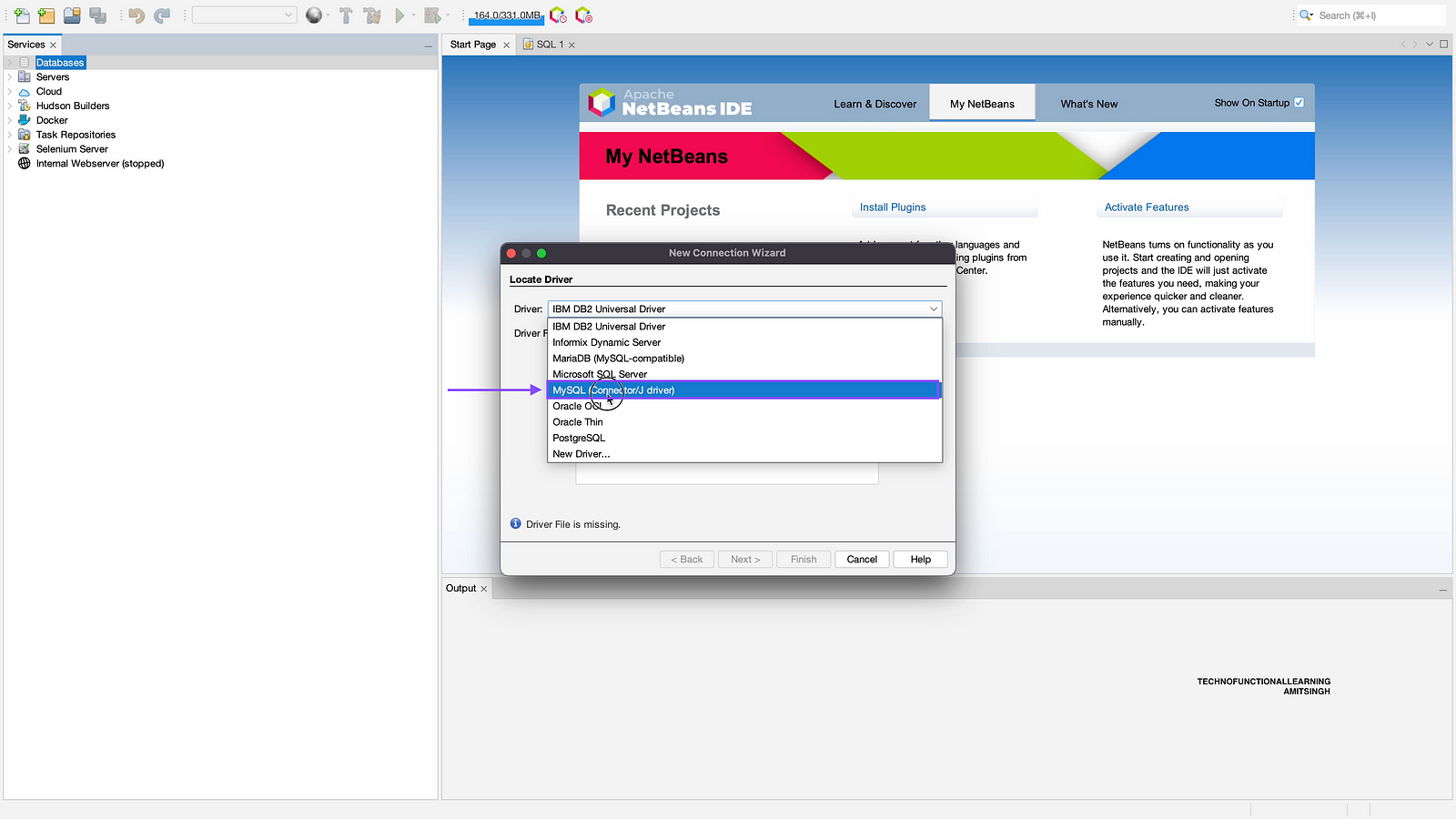
Step 02 : Choose MySQL Connector.
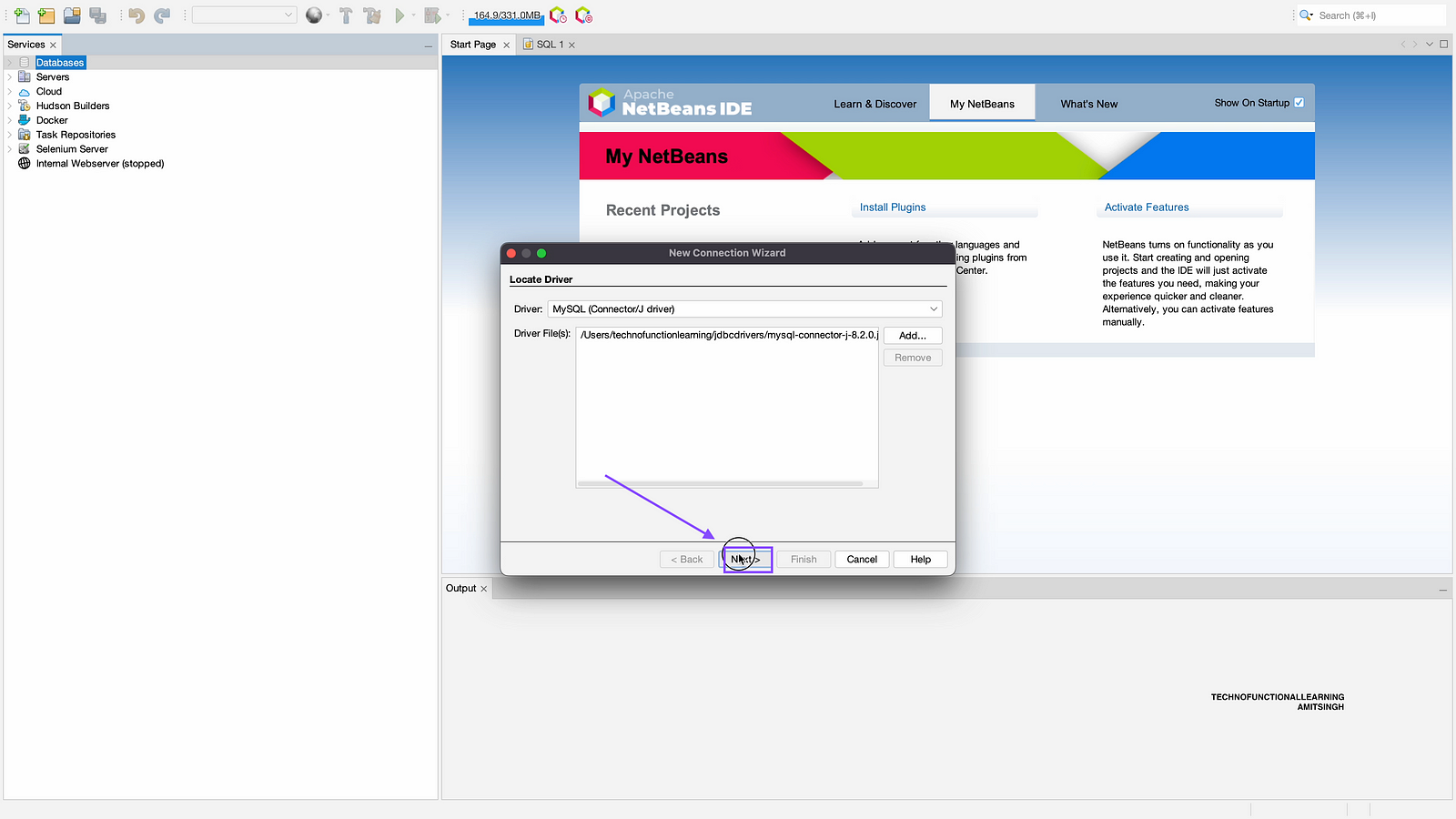
Step 03 : Click on Next.
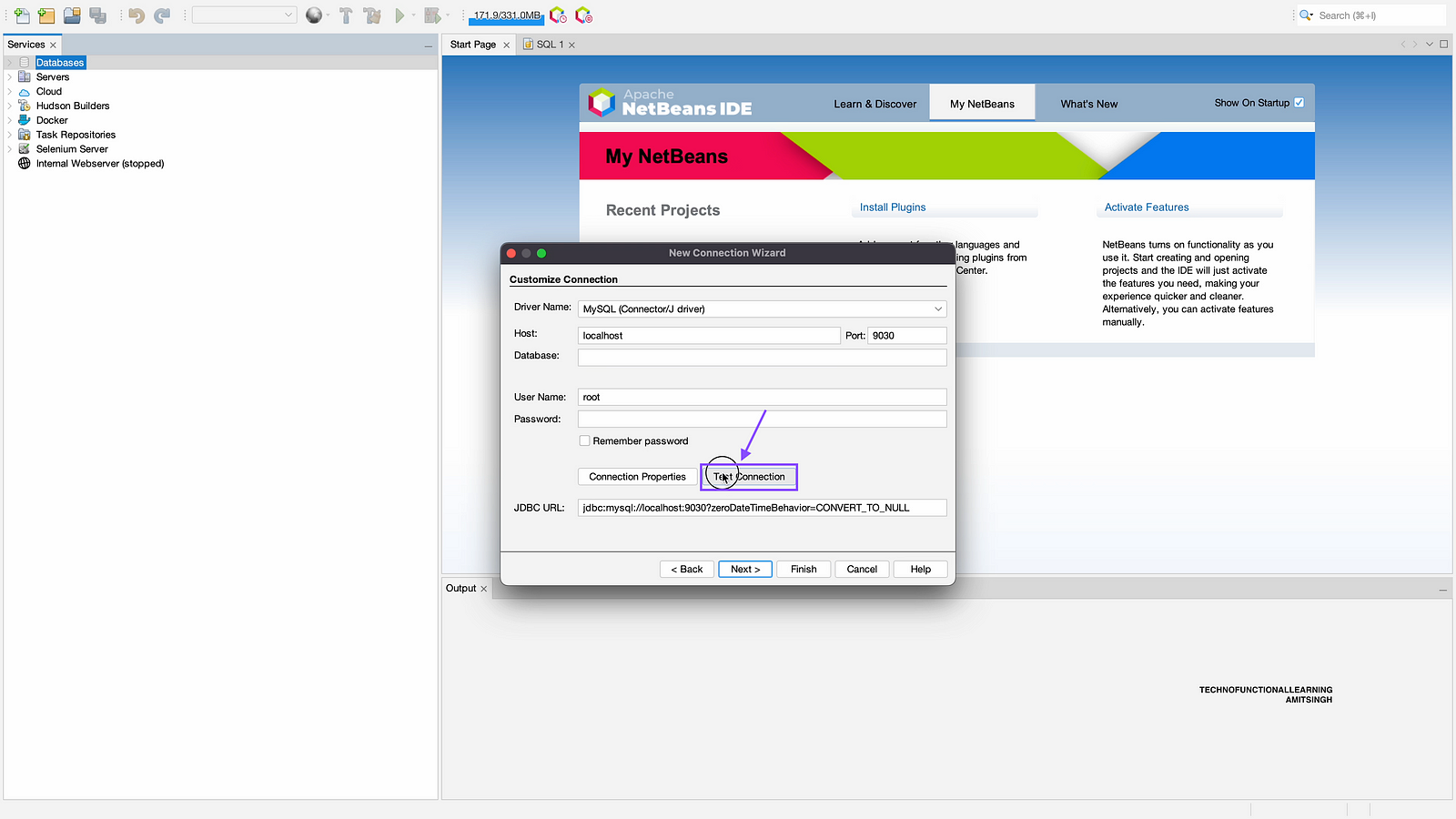
Step 04 : Enter host as localhost for On-Premise, Port as 9030, Database name (your database), username and password of database and then click on next.

Step 05 : Now click on test connection.
Step 06 : Now click on Next.

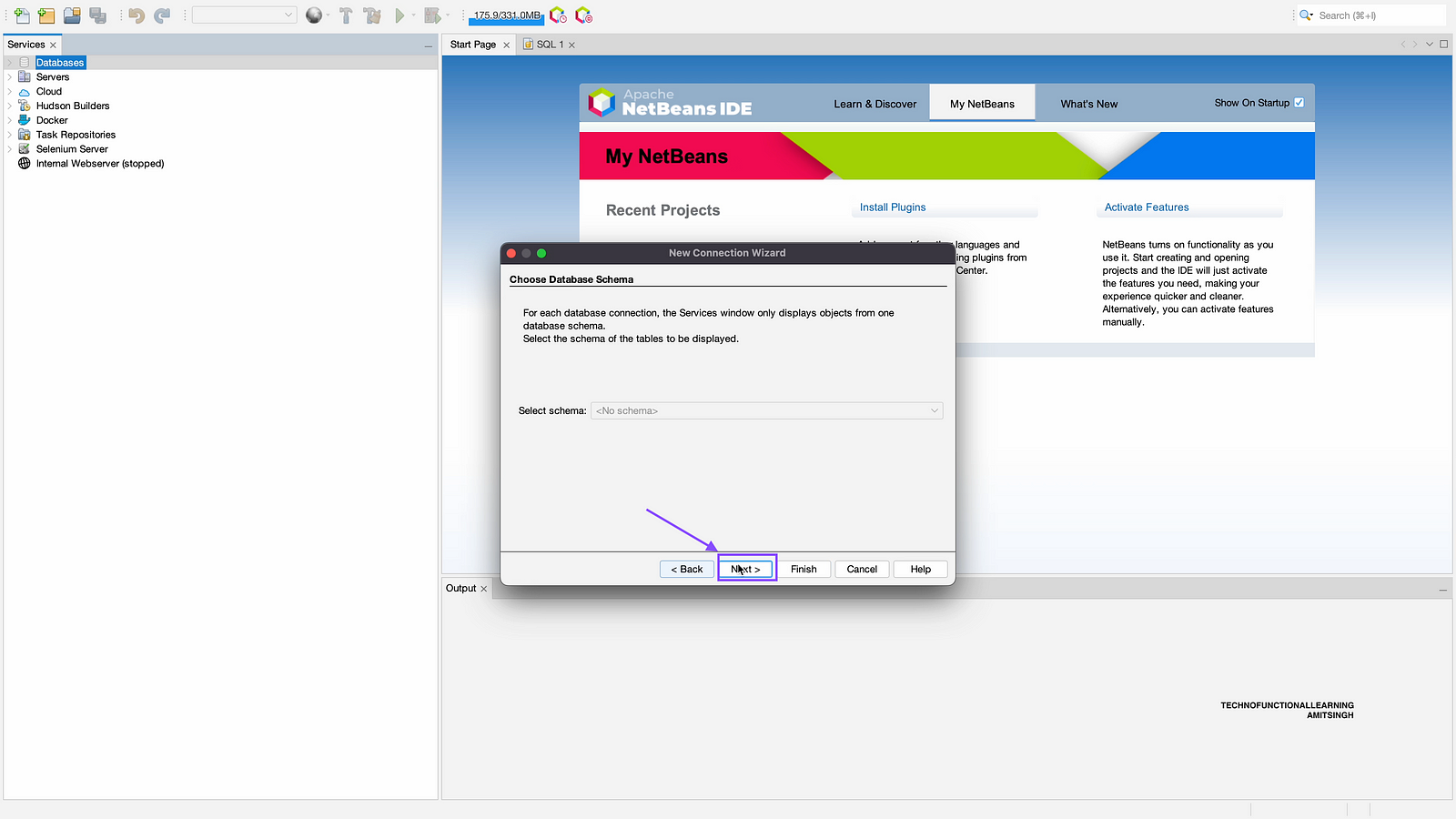
Step 07 : Click on Next
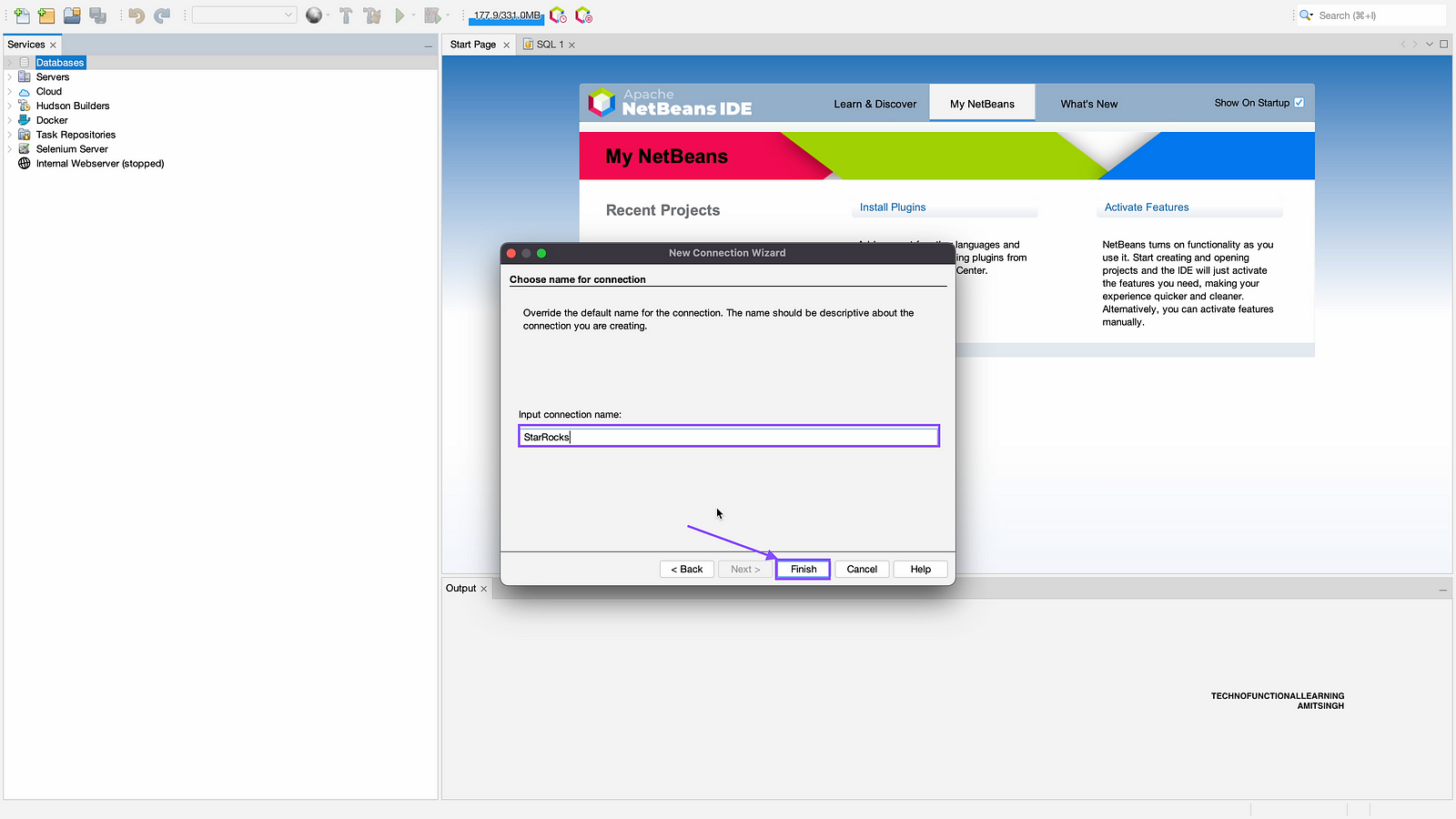
Step 08 : Enter you input connection name as starrocks
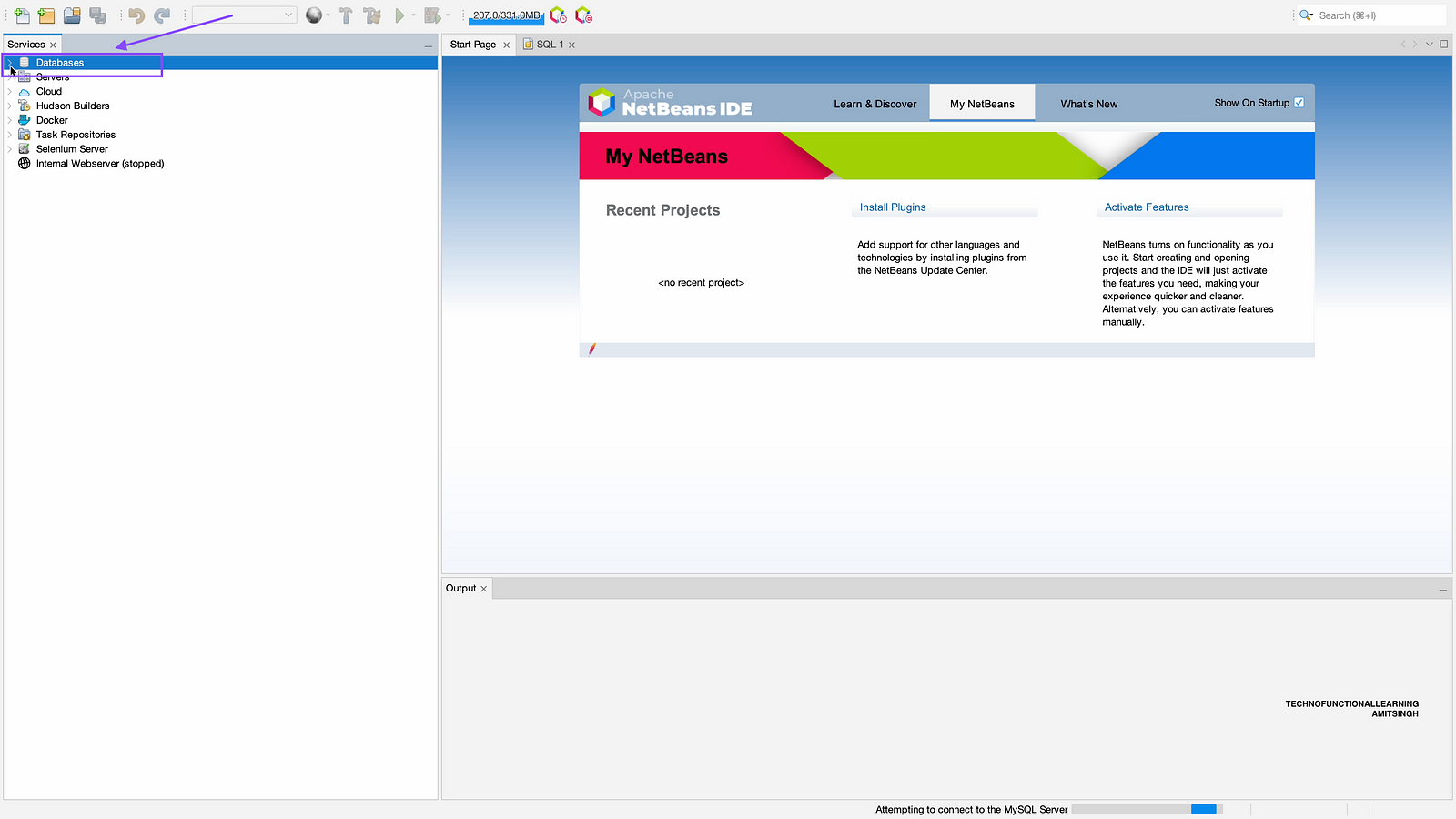
Step 09 : Right click on databases.
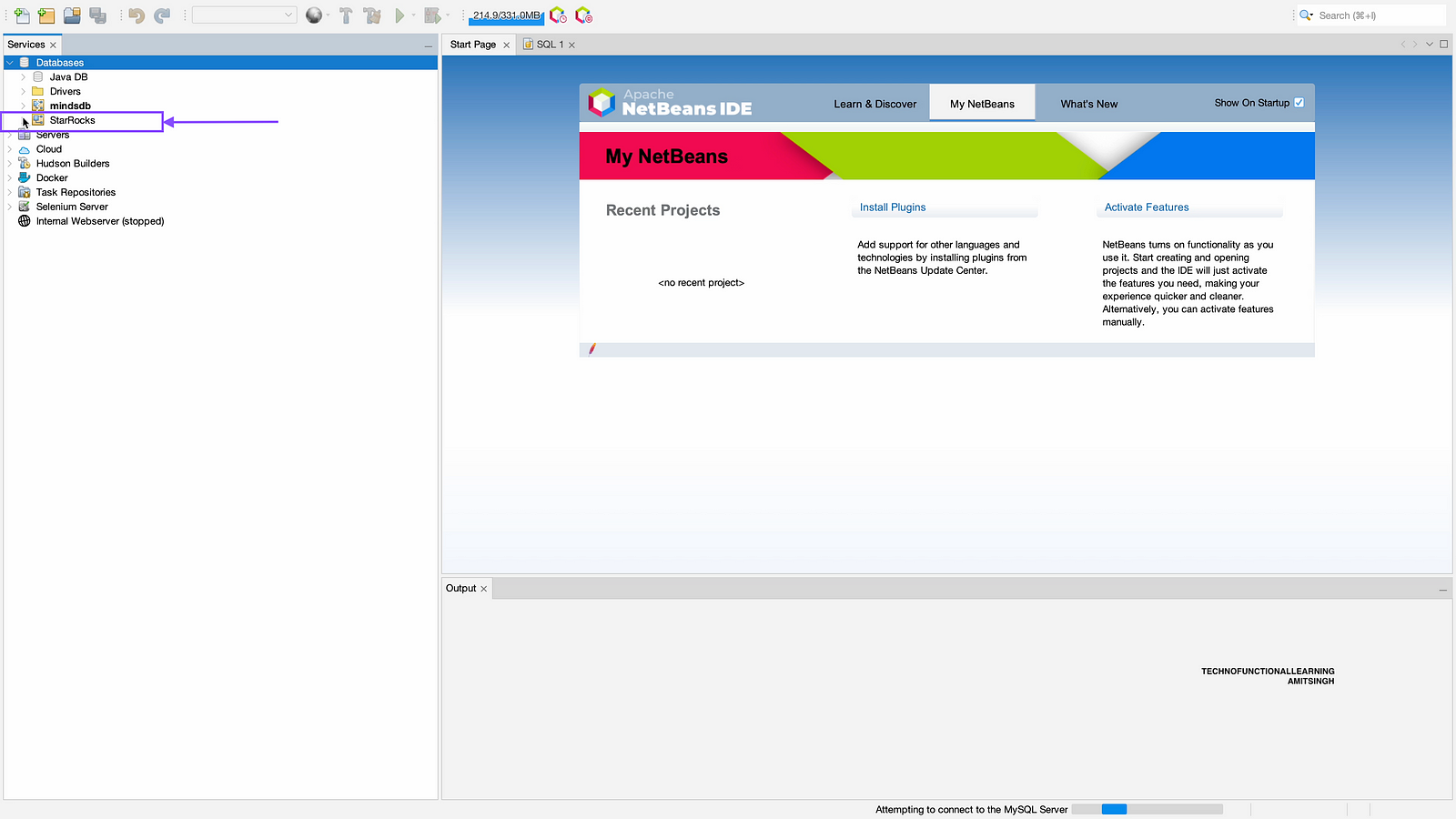
Step 10: Click on Starrocks
Step 11: Right click on starrocks and click on view data, it will auto create SQL Query with select command.

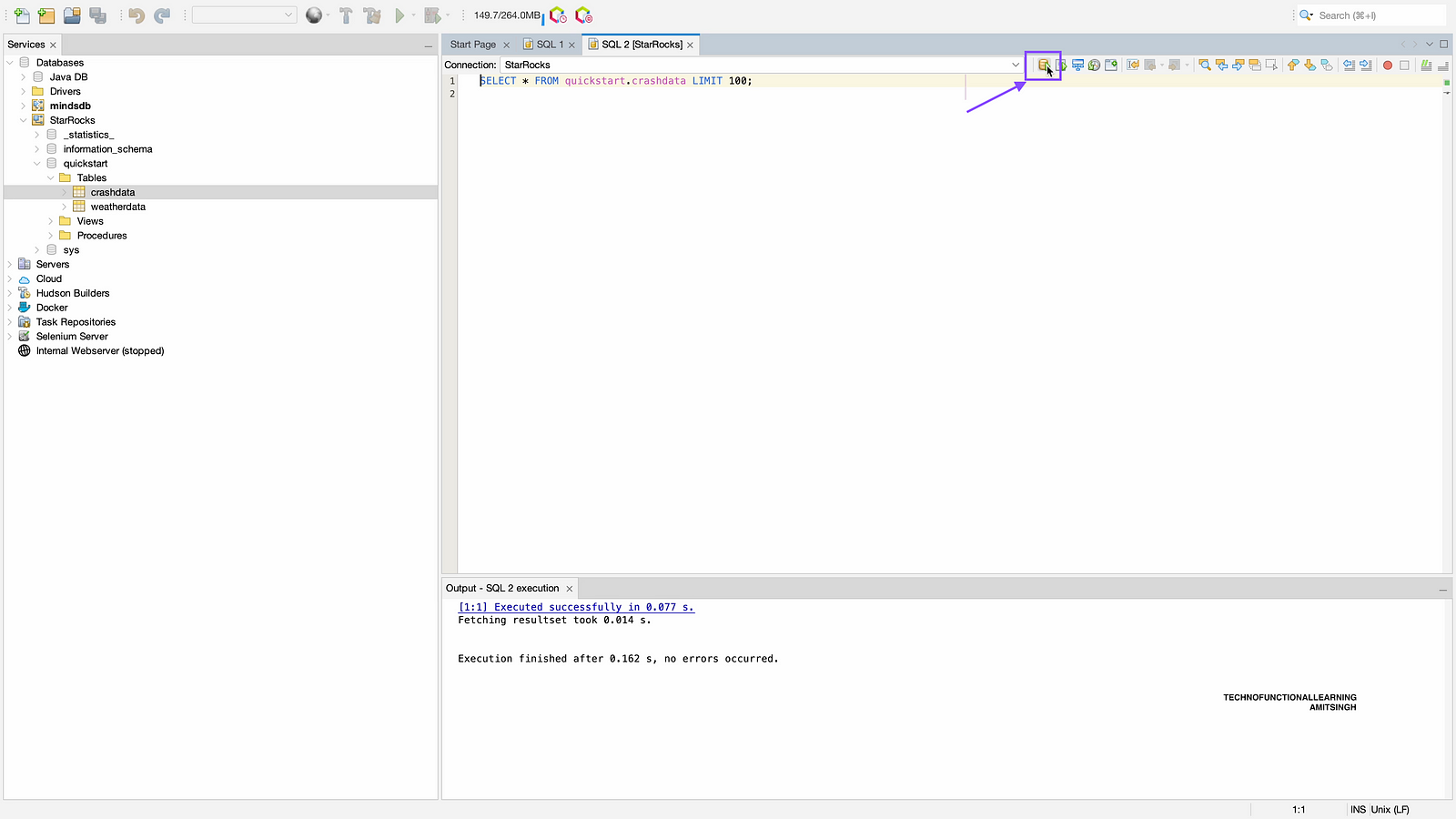
Step 12 : Now click on run to execute auto created SQL query or change it if you want to add additional parameter
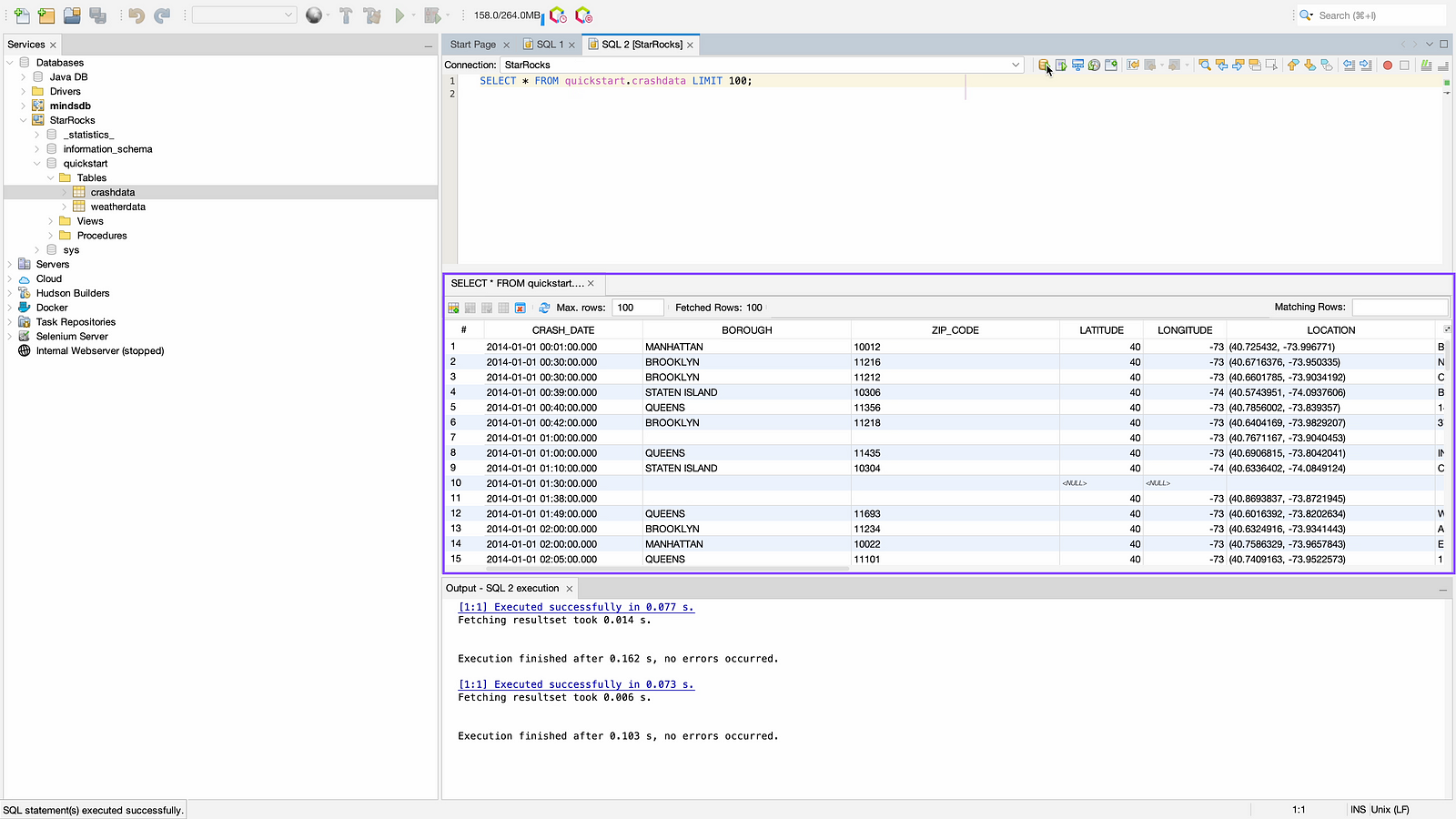
Step 13: Now you can view data in starrocks DB tables.
 TechnoFunctionalLearning