Learn to Setup and Run Ollama Powered privateGPT to Chat with LLM, Search or Query Documents.
Before we setup PrivateGPT with Ollama, Kindly note that you need to have Ollama Installed on MacOS. If you have not installed Ollama Large Language Model Runner then you can Install by going through instructions published in my previous article.
Here are few Importants links for privateGPT and Ollama.
PrivateGPT
Interact with your documents using the power of GPT, 100% privately, no data leaks.
https://github.com/imartinez/privateGPT
Ollama: Large Language Models Runner
https://github.com/ollama/ollama
https://hub.docker.com/r/ollama/ollama
https://github.com/ollama/ollama-python
https://github.com/ollama/ollama-js
Let us start setup now.
Step 01: First clone the repository with below command and enter into privateGPT Directory.
git clone https://github.com/imartinez/privateGPT.git
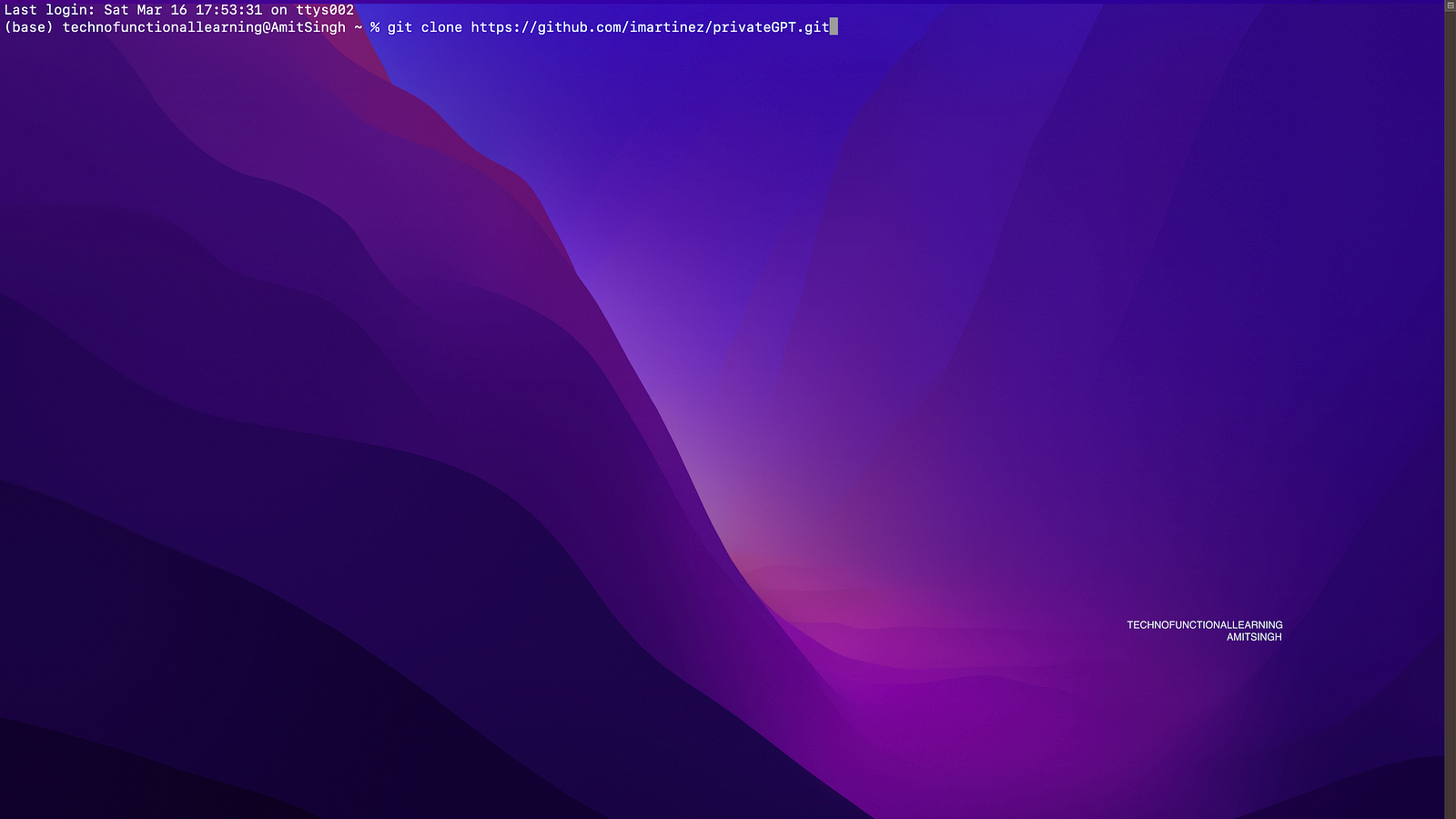
Step 02: Now create Virtual Environment by typing below command.
python -m venv venv

Step 03: Activate virtual Environment by typing below command.
. ./venv/bin/activate
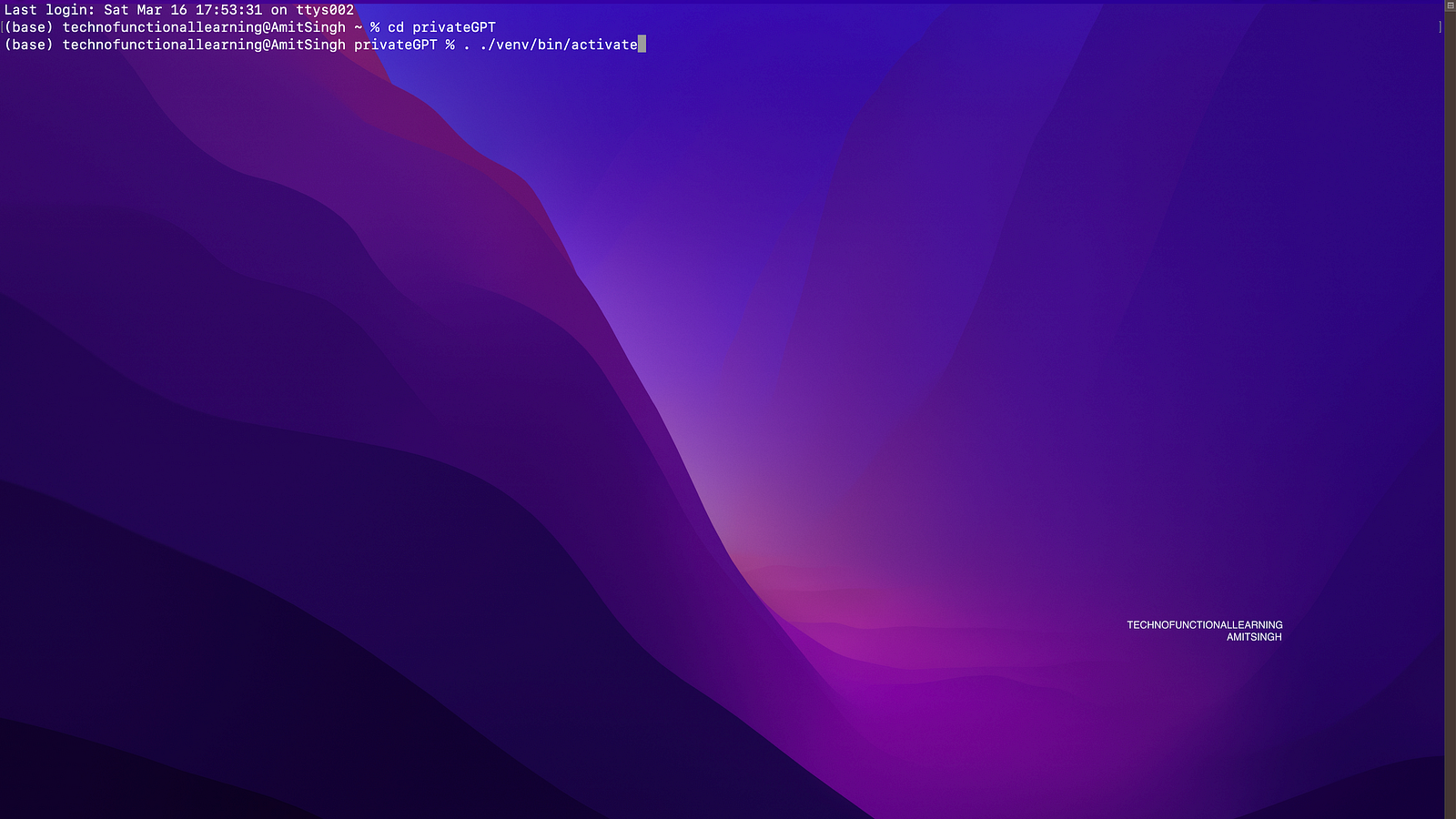
Step 04: Now install Poetry by typing below command so that we can install privateGPT Powered with Ollama.
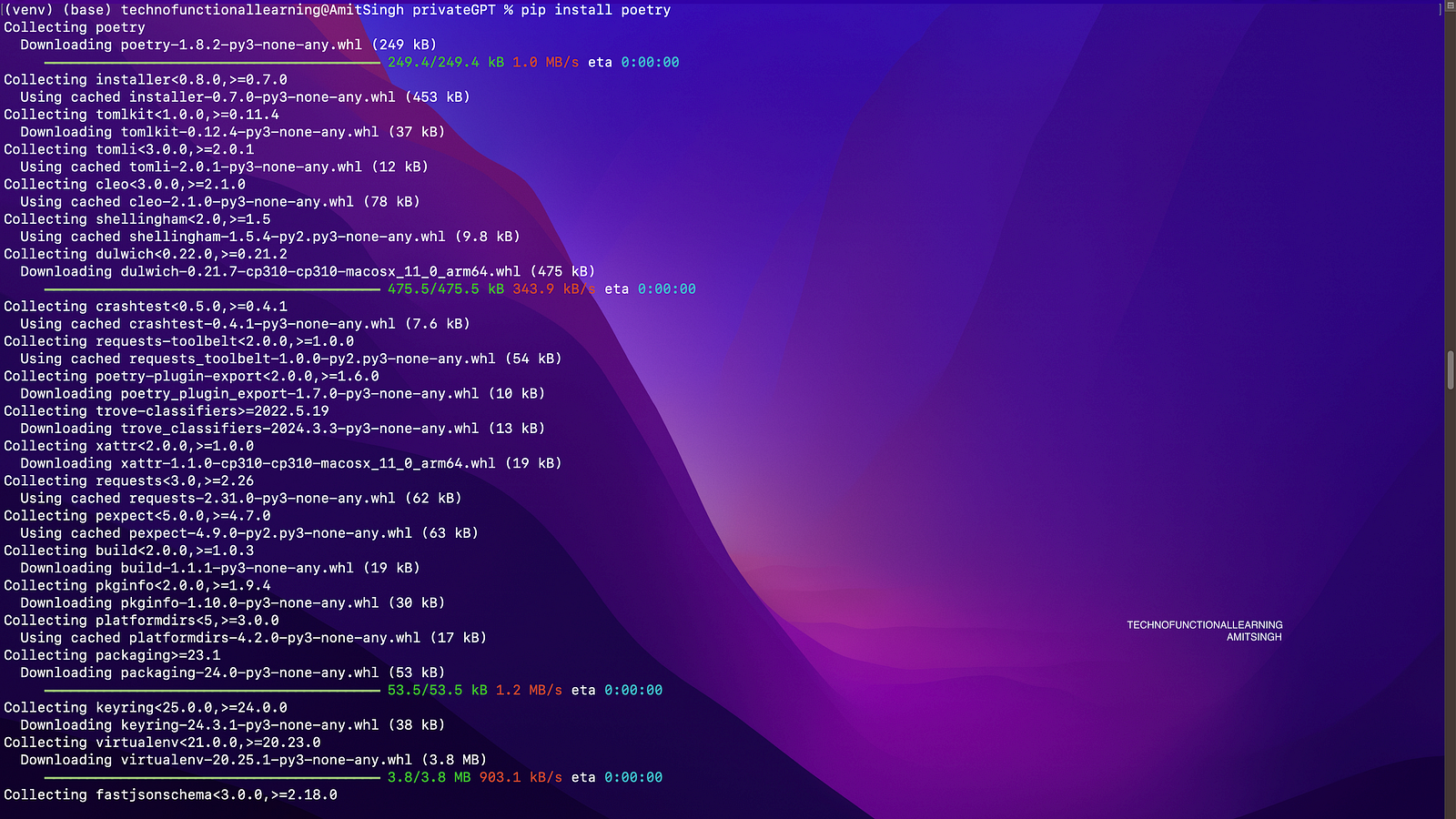
Step 05: Now Install privateGPT with below command
poetry install --extras "ui llms-ollama embeddings-ollama vector-stores-qdrant"

Step 06: Now before we run privateGPT, First pull Mistral Large Language model in Ollama by typing below command.
Ollama pull mistral

Step 07: Now Pull embedding with below command
ollama pull nomic-embed-text

Step 08: Now start Ollama Service by typing below command, it will start local inference server and serve LLM and Embeddings.
Ollama Serve
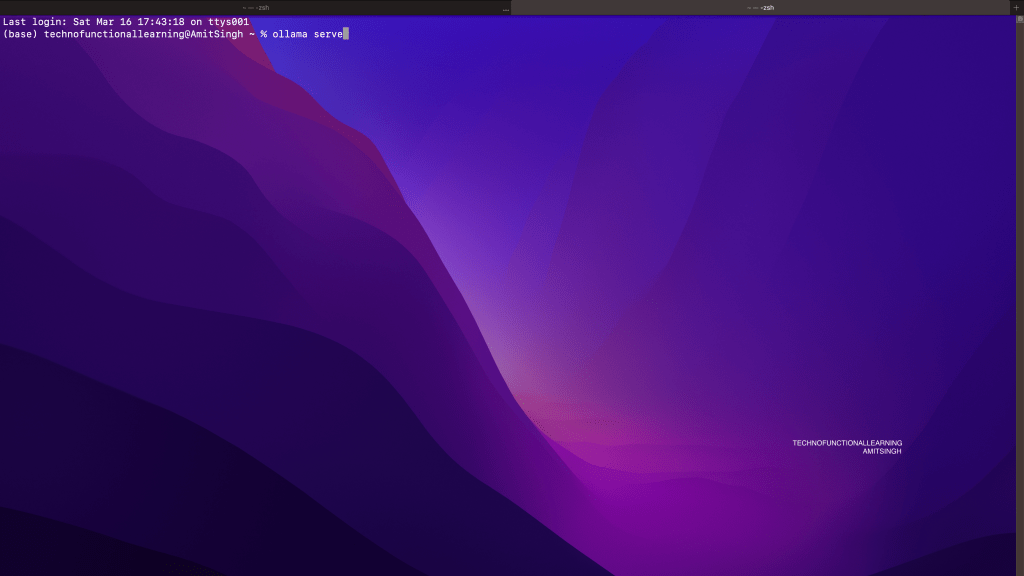
Step 09: Now check at localhost:11434, Ollama should be running.

Step 10: Now run PrivateGPT by Typing Below Command
PGPT_PROFILES=ollama make run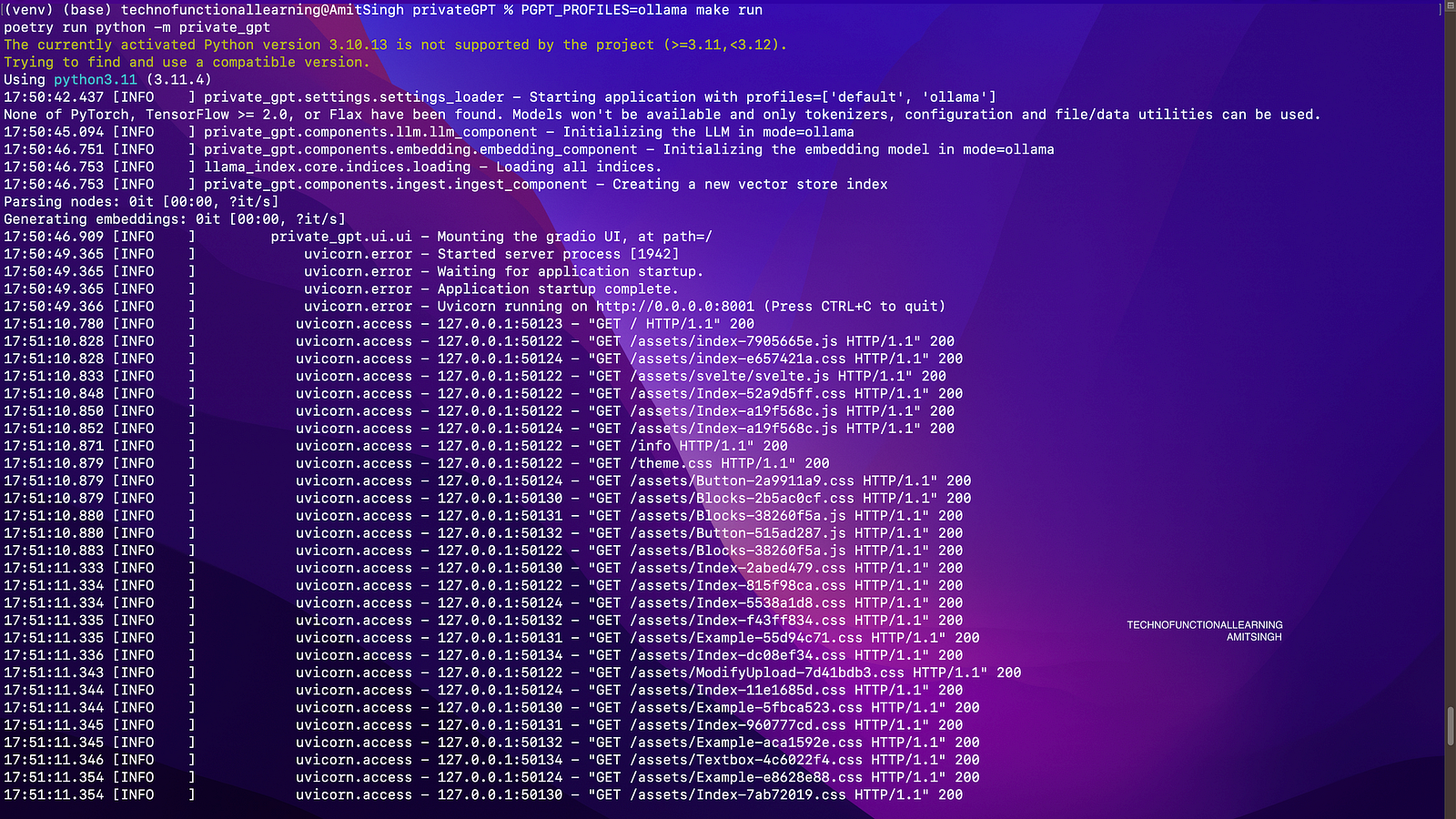
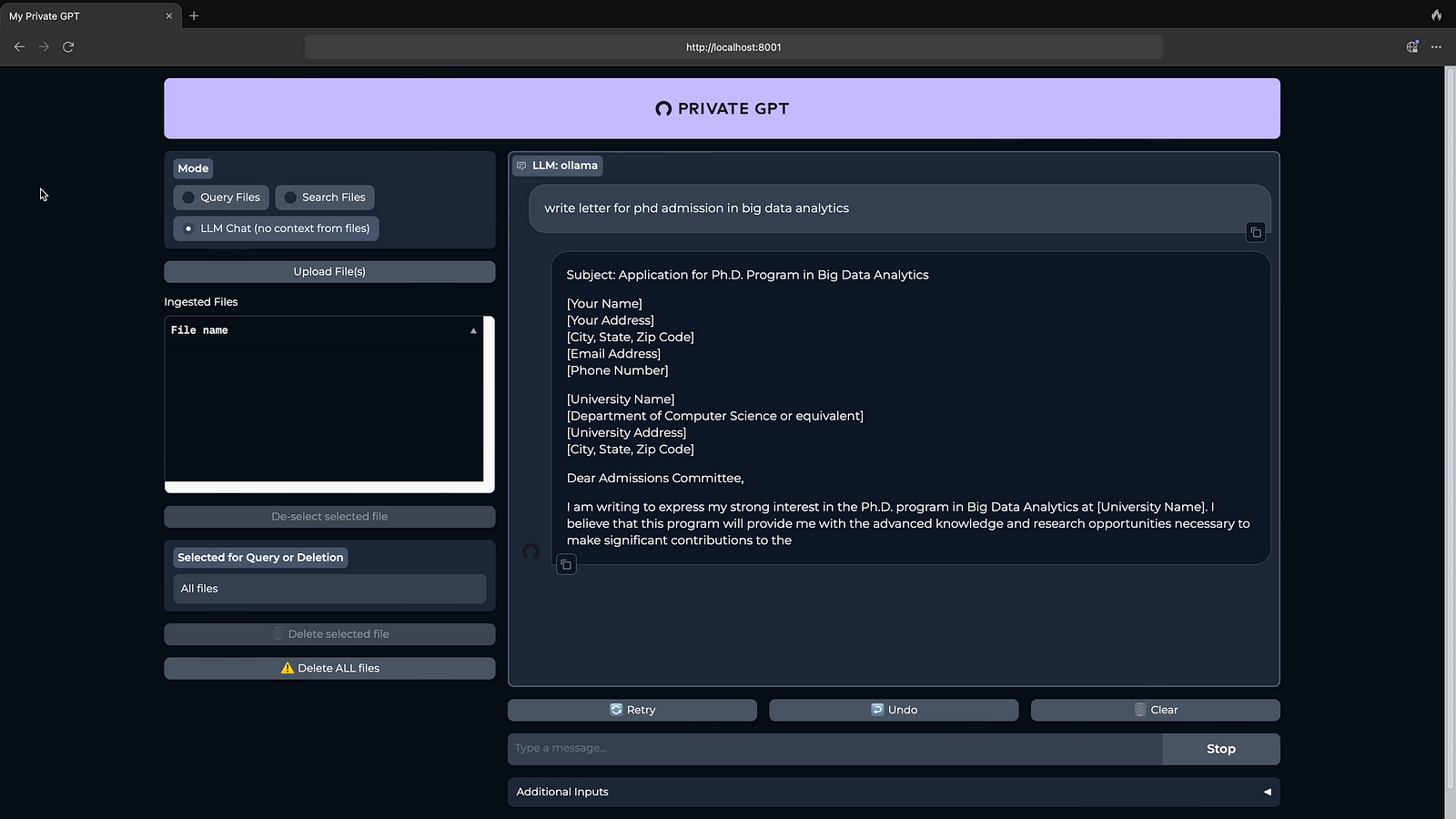
Step 11: Now open localhost:8001 to open Gradio Client for privateGPT.

Step 12: Now ask question from LLM by choosing LLM chat Option.
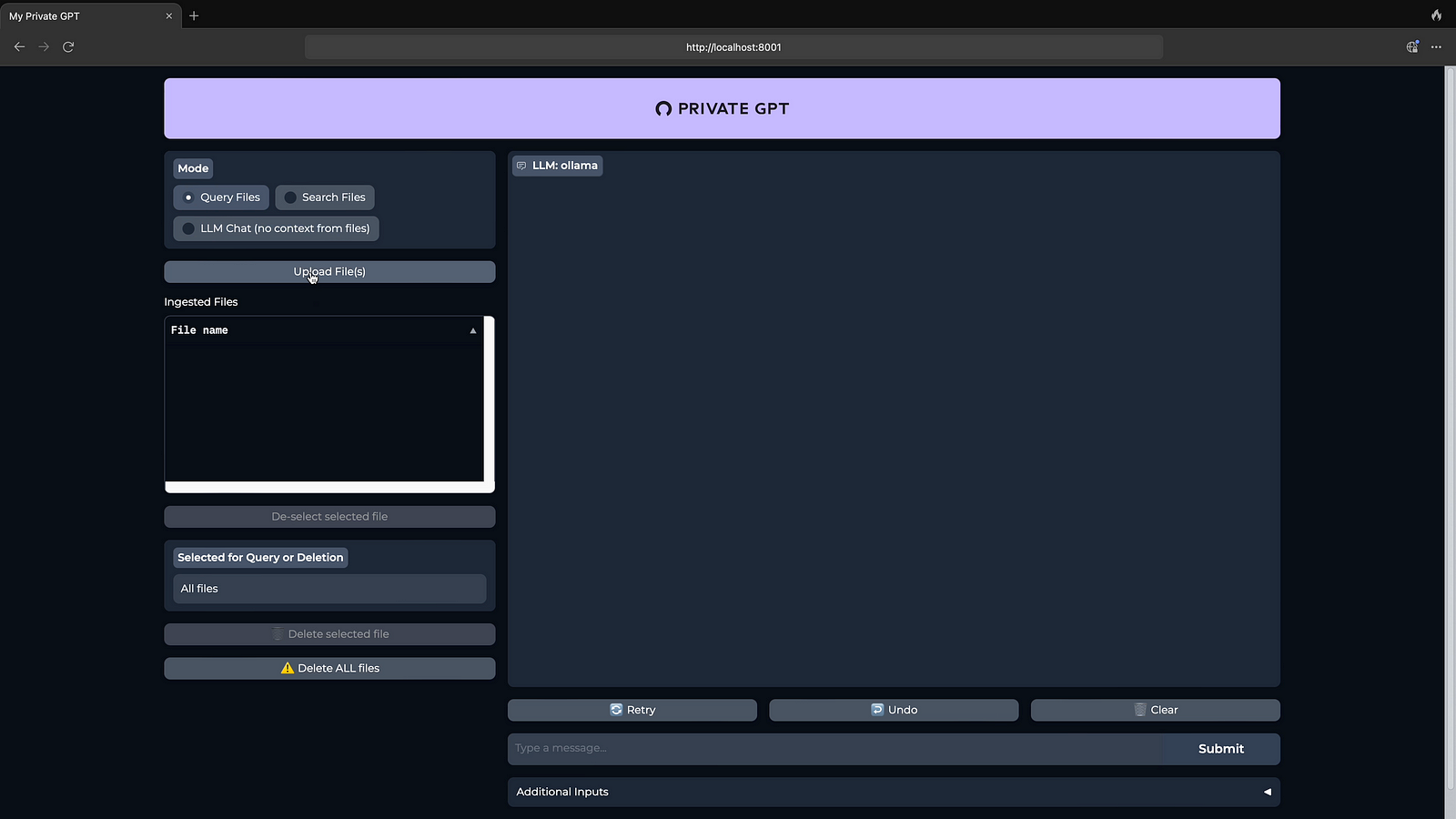
Step 13: Now choose Query Files

Step 14: Click on Upload files, In this Example I have uploaded pdf file.
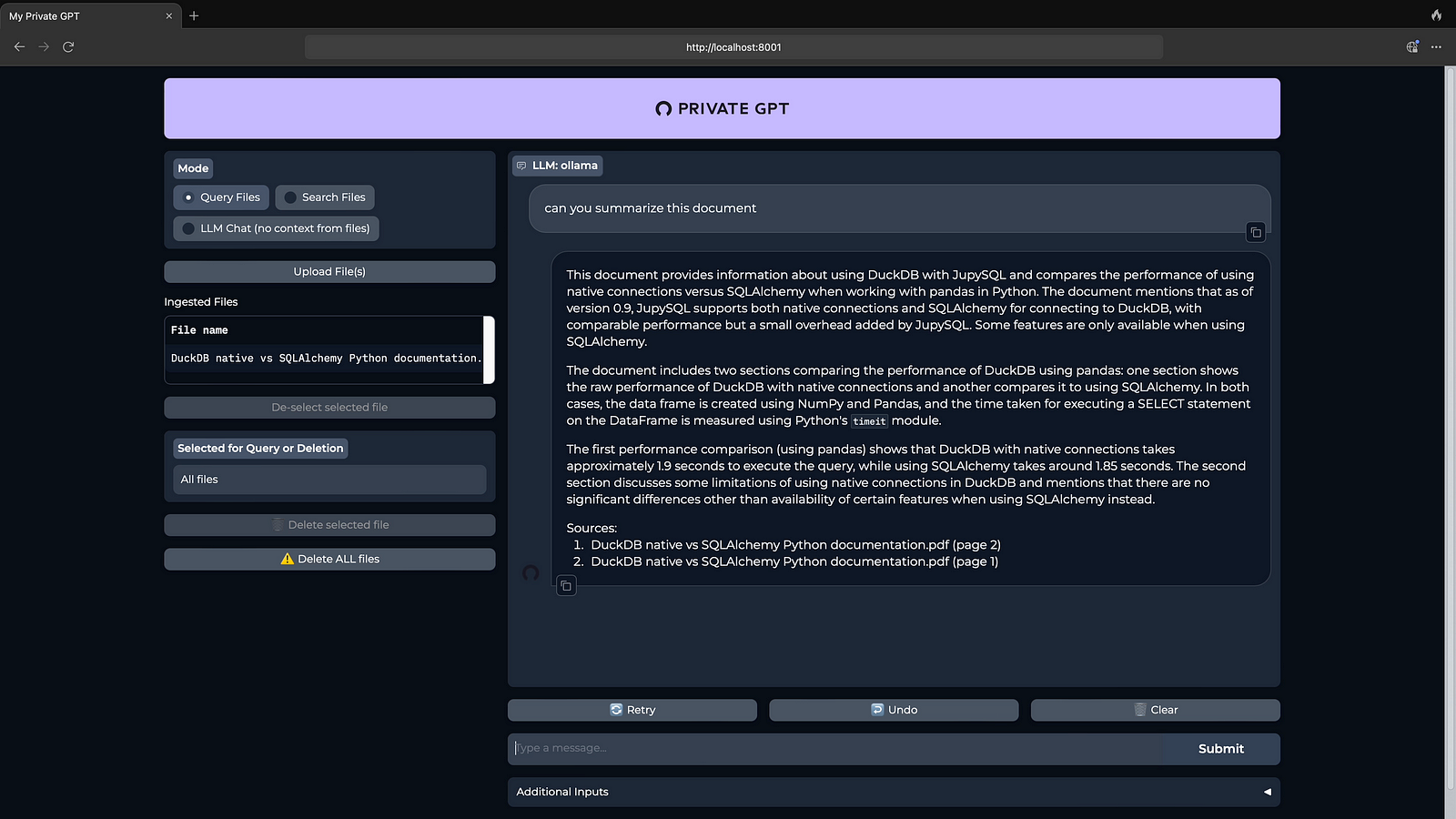
Step 15: Now ask to summarise the document.
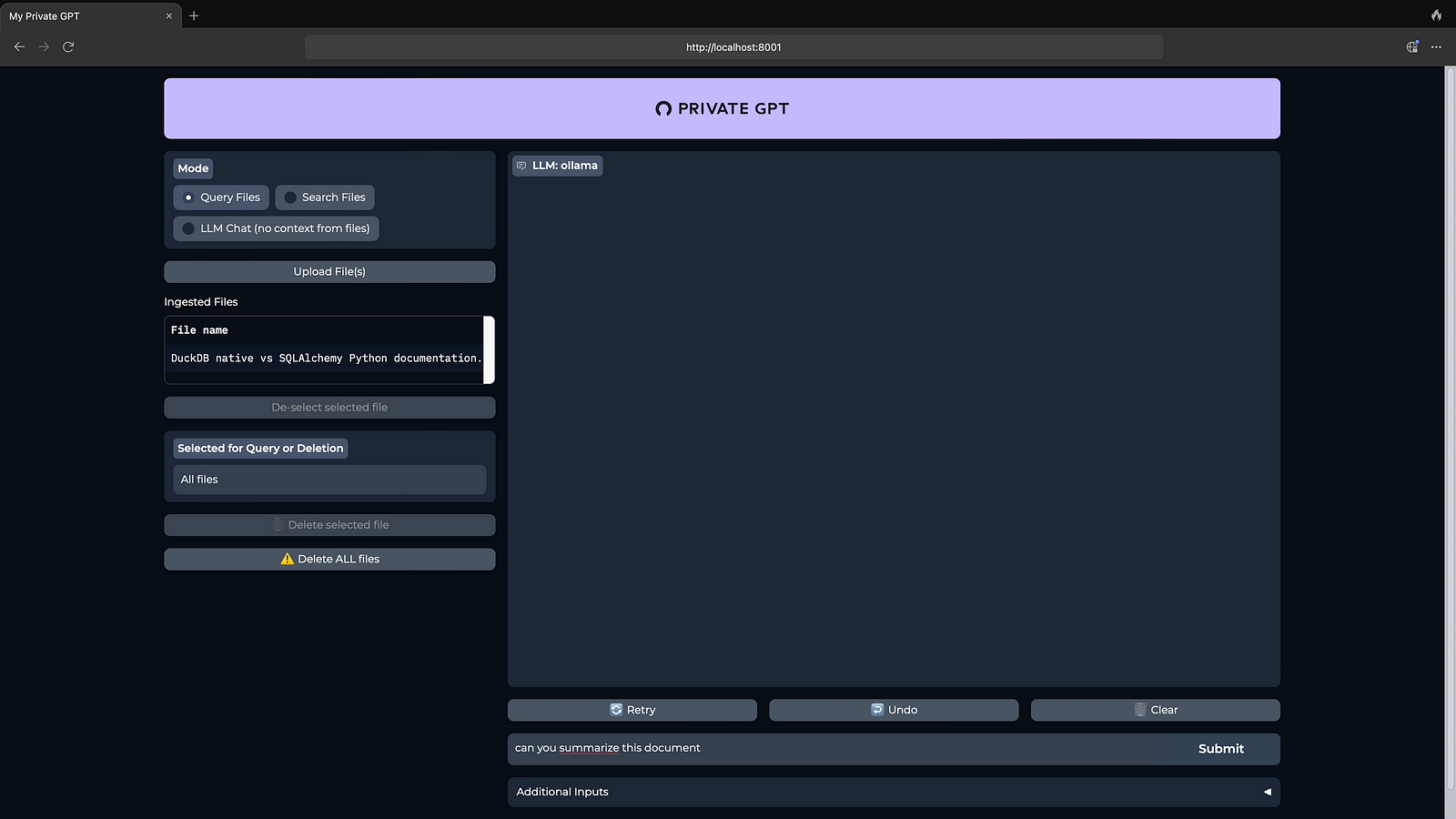
Step 16: Here you will get Summarization of PDF Document, Other Document summarization and queries will be covered in upcoming articles.
Here is 5 minutes Youtube Video to see things in detail.
 TechnoFunctionalLearning
You must be logged in to post a comment.