Learn to Use ADB (SDK Platform Tools) for Installing and Uninstalling Android Apps in your development Mobile Phone (Please do not use in your regular user Mobile & do not remove systems Apps or other require Apps by Android)
What is SDK Platform tools?
Please refer below article For Installation and Getting started with ADB on Ubuntu.
https://technofunctionallearning.wordpress.com/2024/05/07/quickly-run-adb-android-sdk-platform-tools-for-linux-on-ubuntu/
Kindly note that before you use ADB commands on Android make sure that USB Debugging is ON on your Development Mobile, you should be able to activate USB debugging by tapping on Build Number (search in setting under “about phone”, Once Developer options activated then search for usb debugging and activate it.
Now How to Install trusted apk file (please do not install any apk file from internet until you trust the repository), You can find various good android apps on github i.e “Firefox, Duckduckgo, signal, onlyoffice etc”
Step 01: First check if you Development Android device is Connected by typing below command
./adb devices

Step 02: Now Install Android app (Example chatbox.apk) by typing below command
./adb install chatbox.apk

Step 03: Now you should be able to see success message
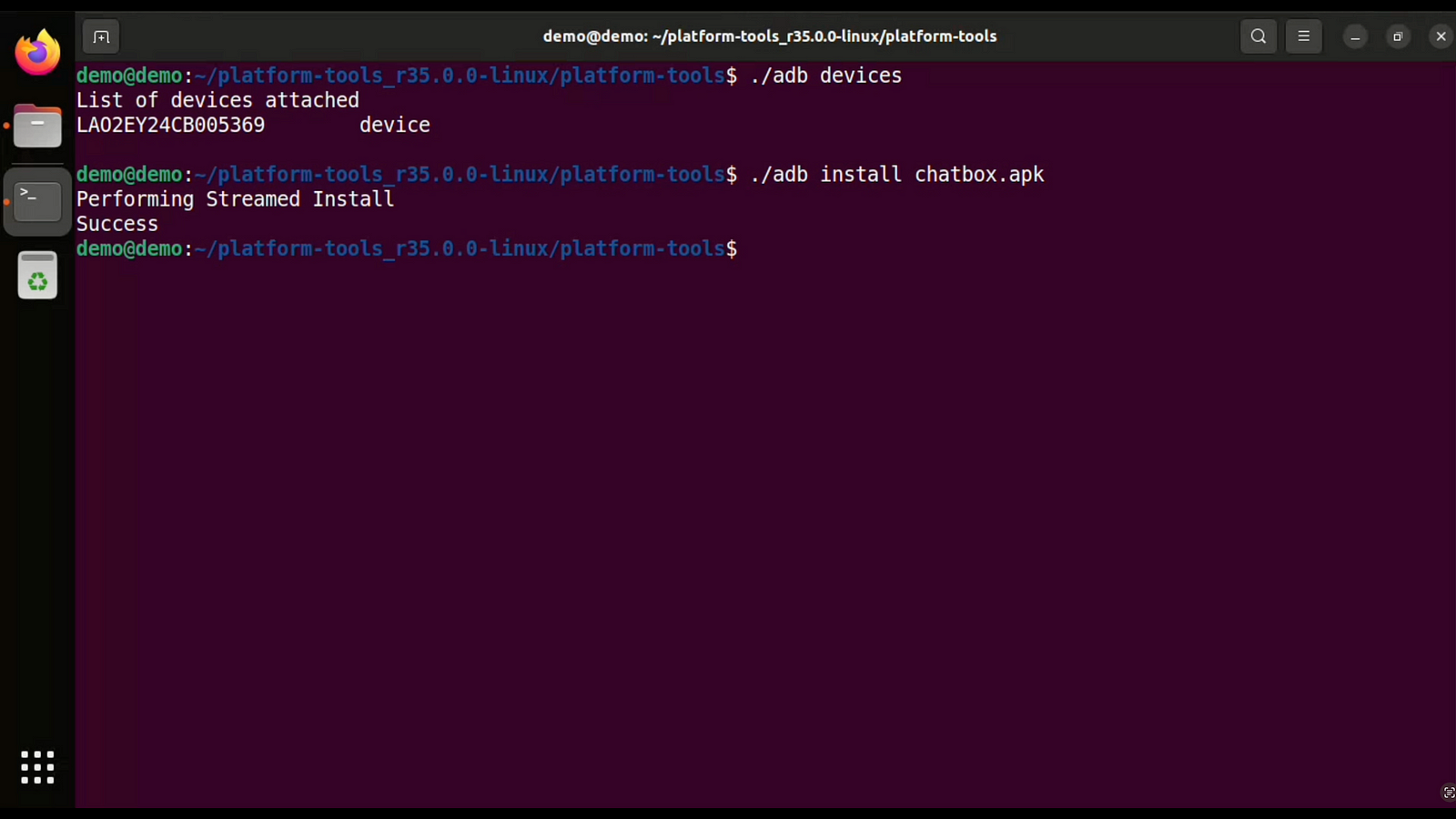
Step 04: Now you should be able to see chatbox App on your Android Device.

Here is Youtube Video for Visual Reference
Now Here is how to Remove or Uninstall Android Apps with ADB from your Developement Mobile.
Step 01: Type below command on shell or direct to list packages
pm list packages -f

or ./adb shell pm list packages -f

or ./adb shell pm list packages -f -3     (to see third party apps)
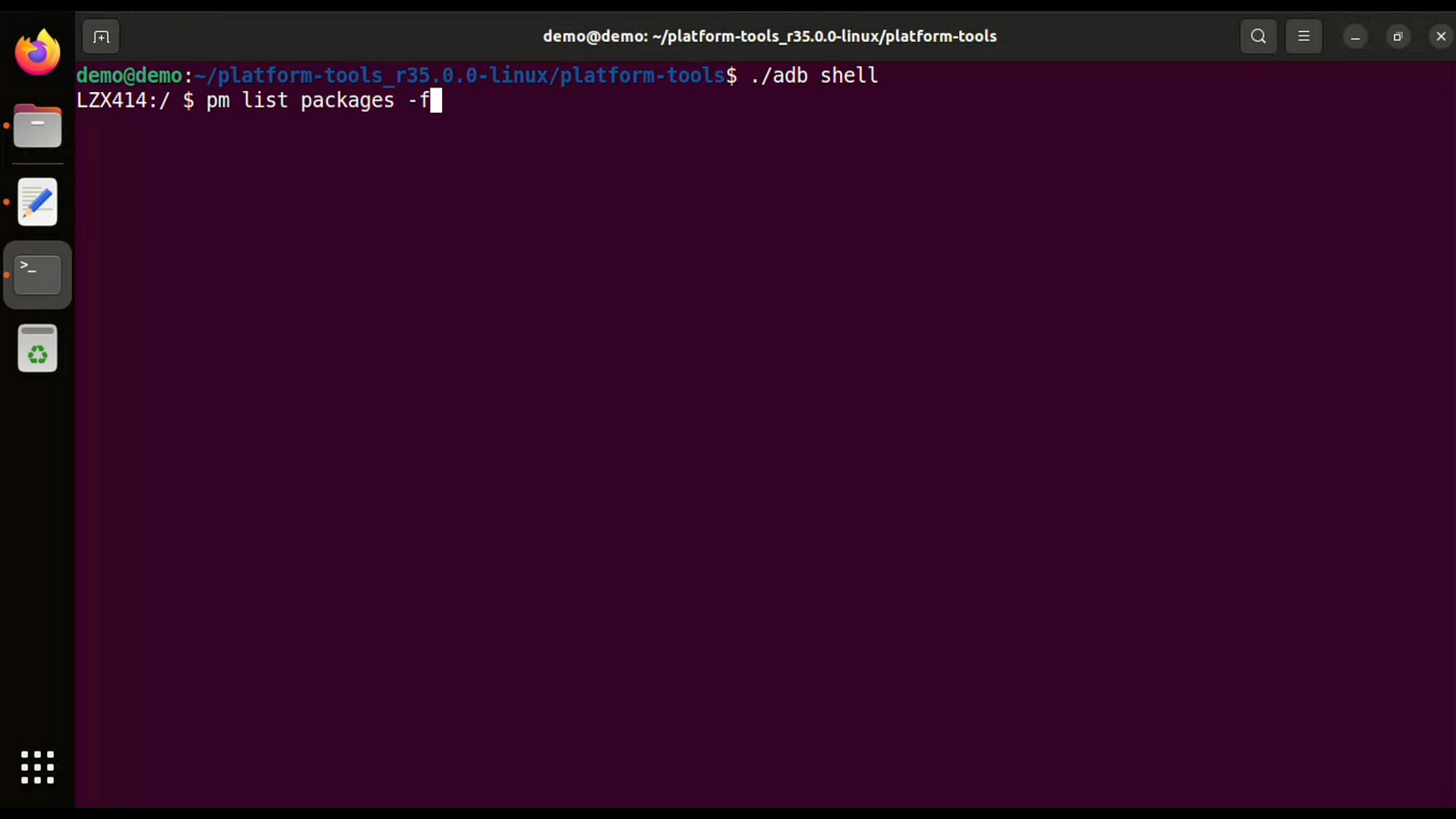
Step 02: Now search chatbox android app with search button on top of terminal.

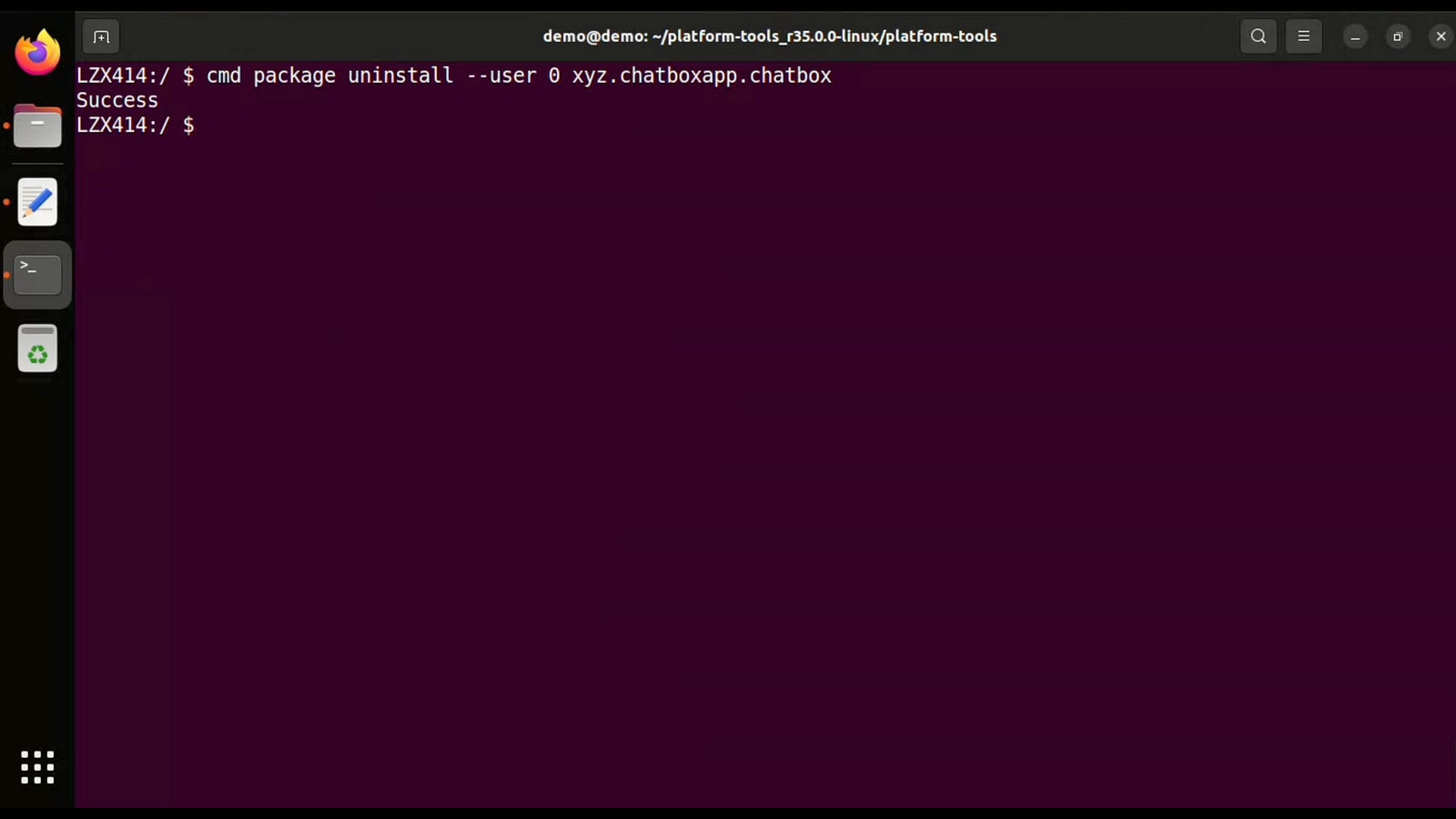
Step 03: Now copy package name as shown in screenshot “xyz.chatboxapp.chatbox:
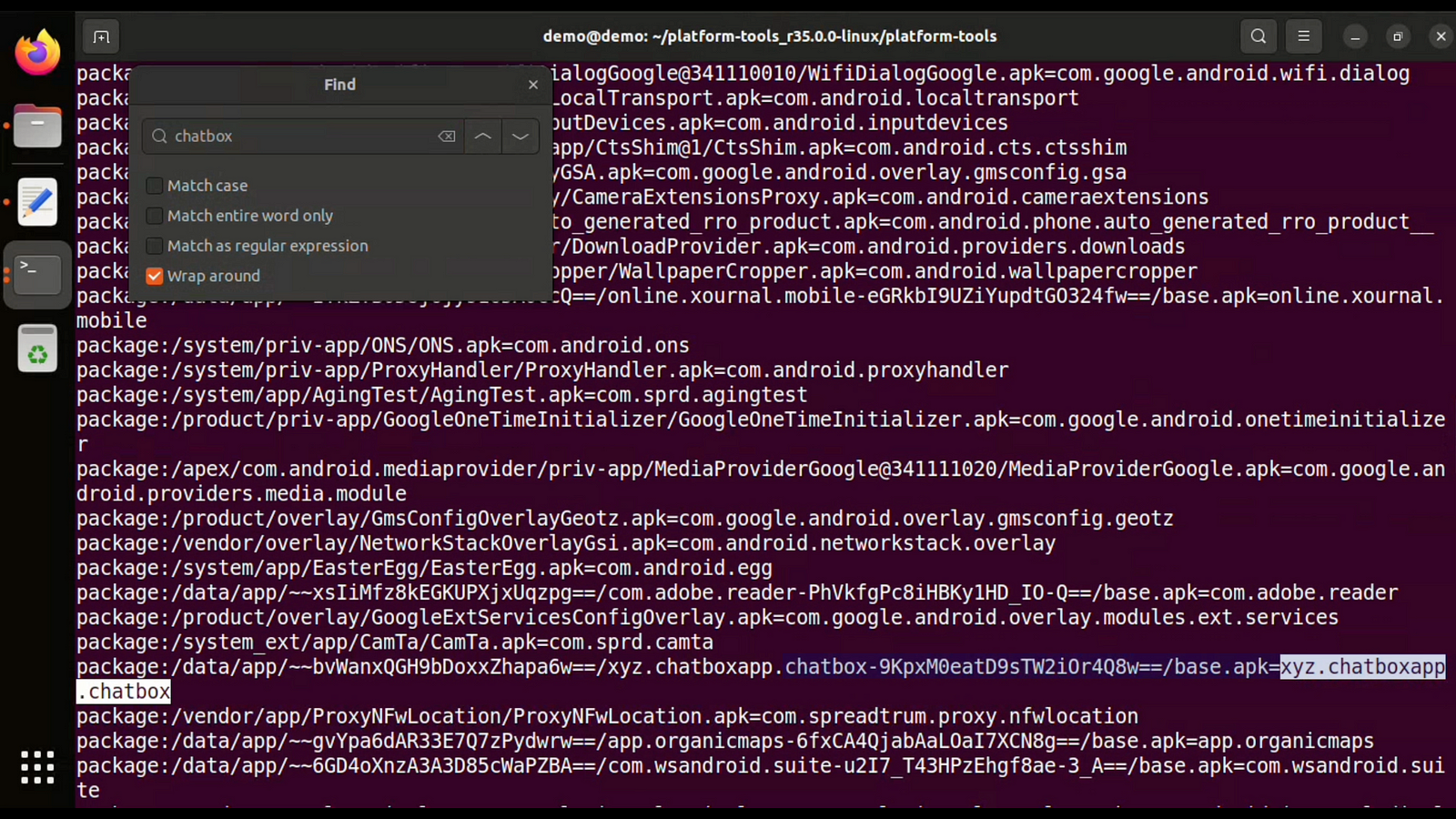
Step 04: Now type below command to Uninstall chatbox.apk app from Android via ADB.
Here is Youtube Video for Visual Reference
 TechnoFunctionalLearning