Learn to Install Ubuntu/OpenSuse/Fedora/Debian/Alpine Linux and much more on Android Mobiles (Development Environment) and Waydroid with Termux.
***Kindly note: Installation command remain same on Waydroid and Android Mobiles Termux***
https://github.com/waydroid/waydroid
Waydroid uses a container-based approach to boot a full Android system on a regular GNU/Linux system like Ubuntu.
Main Features Of Waydroid
Waydroid uses Linux namespaces (user, pid, uts, net, mount, ipc) to run a full Android system in a container and provide Android applications on any GNU/Linux-based platform (arm, arm64, x86, x86_64). The Android system inside the container has direct access to needed hardware through LXC and the binder interface.
Free and Open-Source
The Project is completely free and open-source, currently our repo is hosted on Github.
Full app integration
Waydroid integrated with Linux adding the Android apps to your linux applications folder.
Multi-window mode
Waydroid expands on Android freeform window definition, adding a number of features.
Full UI Mode
For gaming and full screen entertainment, Waydroid can also be run to show the full Android UI
Near native performance
Get the best performance possible using wayland and AOSP mesa, taking things to the next level
Active community
Find out what all the buzz is about and explore all the possibilities Waydroid could bring
Get your favourite Android Apps on Linux.
Waydroid brings all the apps you love, right to your desktop, working side by side your Linux applications.
The Android inside the container has direct access to needed hardwares.
The Android runtime environment ships with a minimal customized Android system image based on LineageOS. The used image is currently based on Android 11
Termux
Termux — a terminal emulator application for Android OS extendible by variety of packages.
https://github.com/termux/termux-app
https://www.alpinelinux.org/about/
Let’s get started.
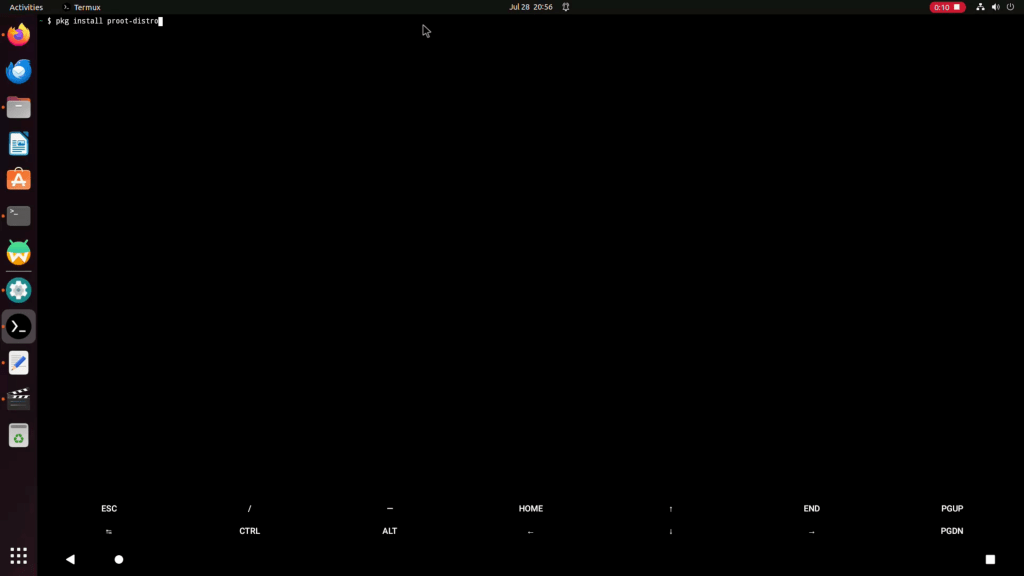
Step 01: First we need to Install Proot-Distro in Termux to Install Operating systems. You can install proot-distro by typing below command.
pkg install proot-distro
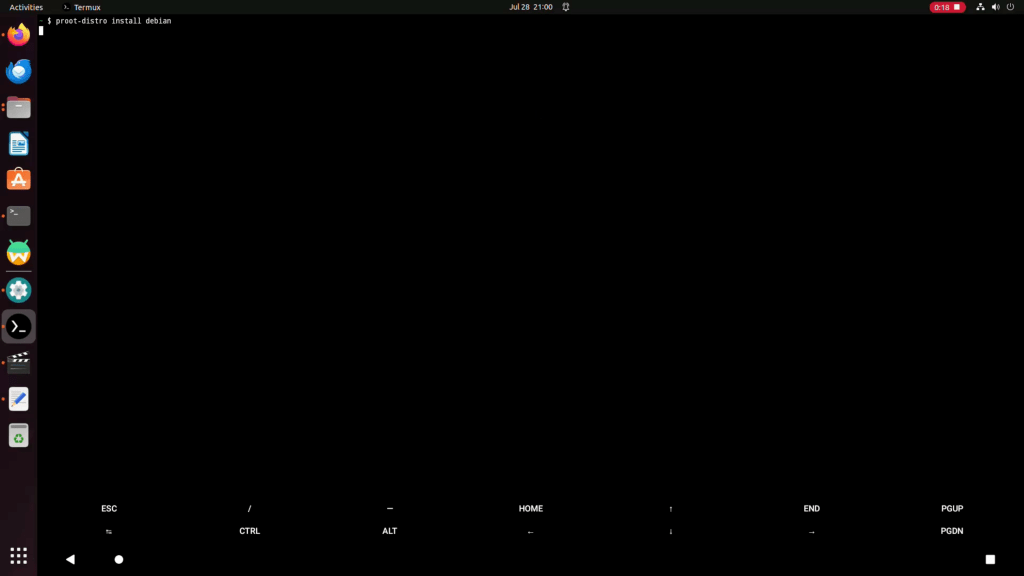
Step 02: Now type below command to install debian
proot-distro install debian
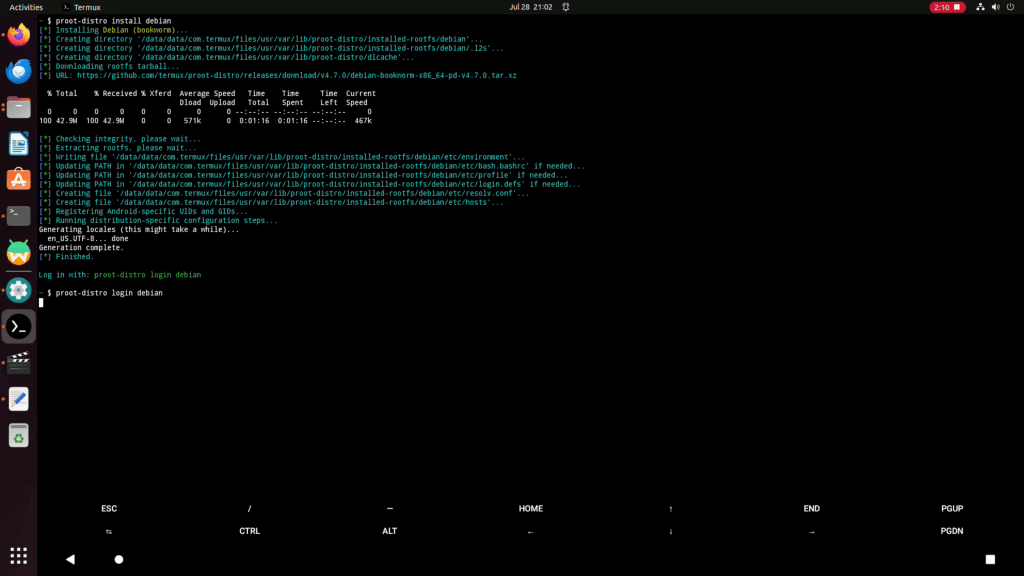
Step 03: Now type below command to login in Debian
proot-distro login debian
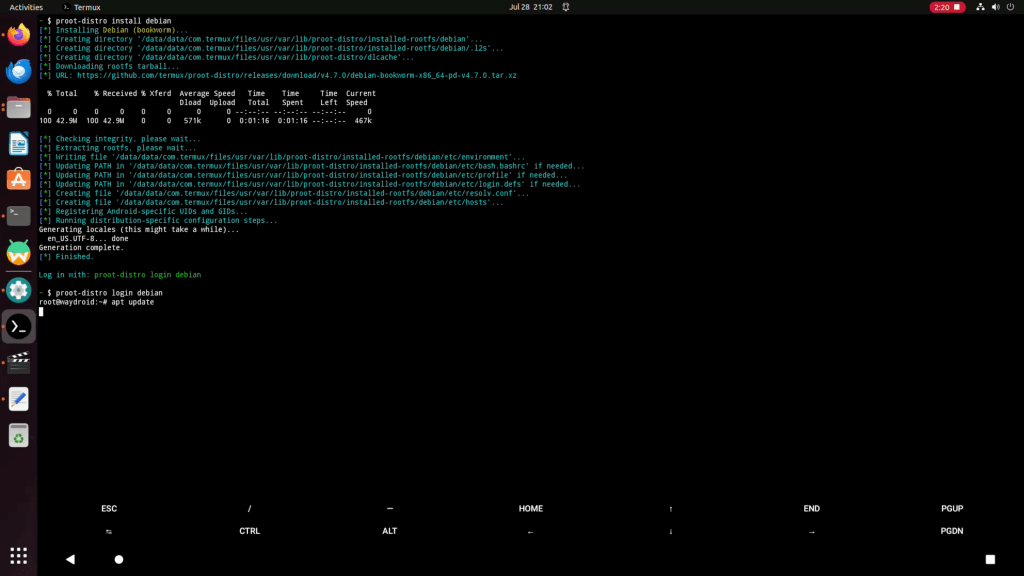
Step 04: To update Debian repo, type below command and type exit to exit from Debian.
apt update
Here is youtube video for quick reference
Step 05: Type below command to install Ubuntu 22.04, make sure you are out from any existing OS login by typing exit
proot-distro install ubuntu-oldits
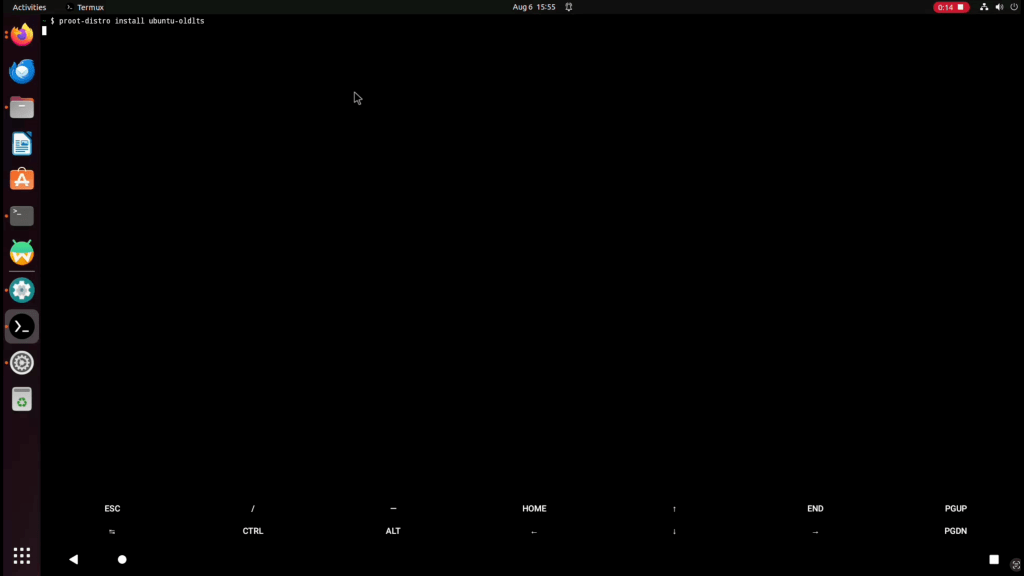
Step 06: Login to Ubuntu with below command
proot-distro login ubuntu-oldIts
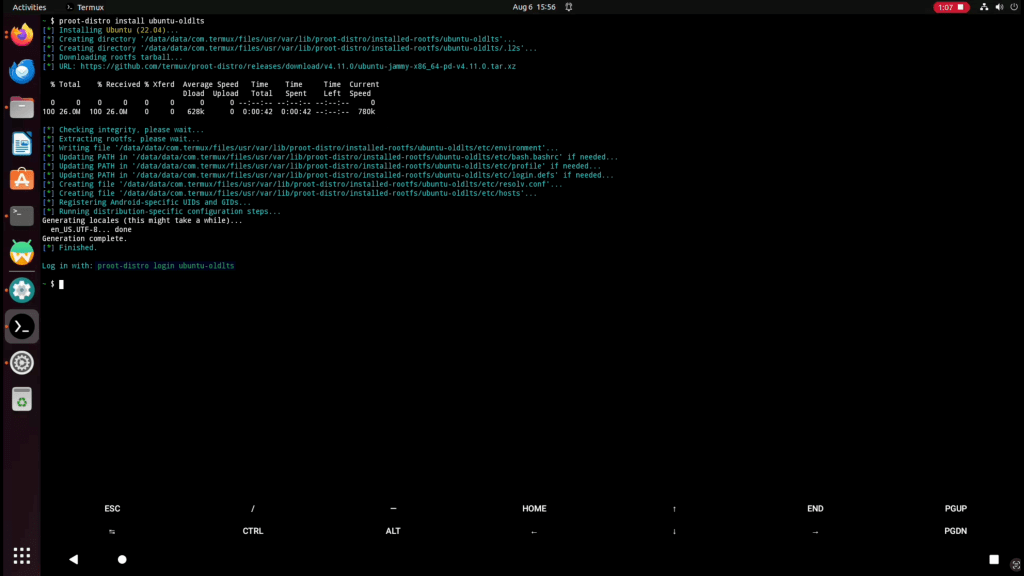
Here is youtube video for quick visual reference.
Step 07: Now type below command to install Fedora, make sure you are out from any existing OS login by typing exit
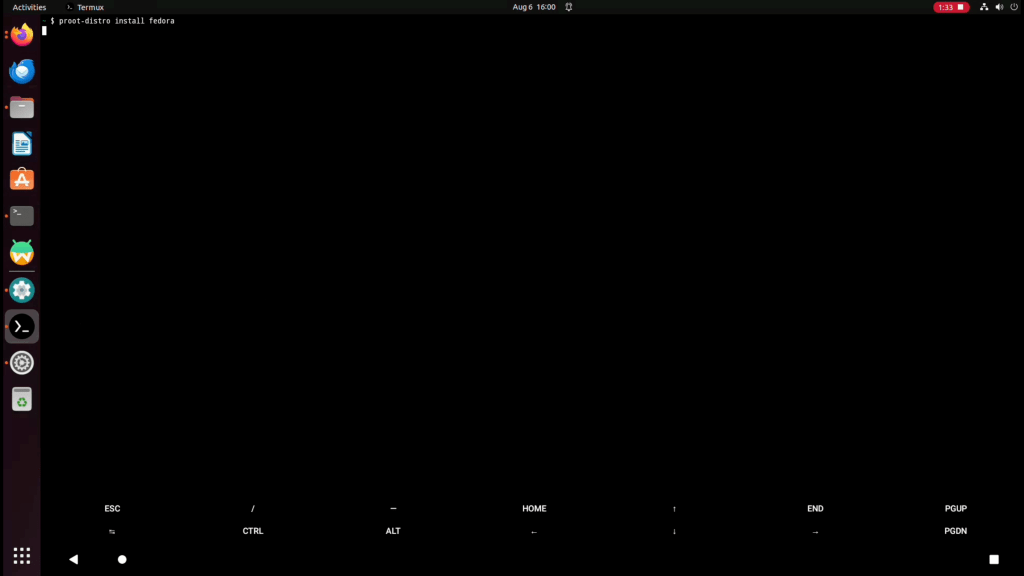
Step 08: Type below command to login in Fedora
proot-distro login fedora

Here is youtube video for quick Visual Reference
Step 09: Type below command to install opensuse, make sure to exit from any current OS login by typing exit.
proot-distro install opensuse
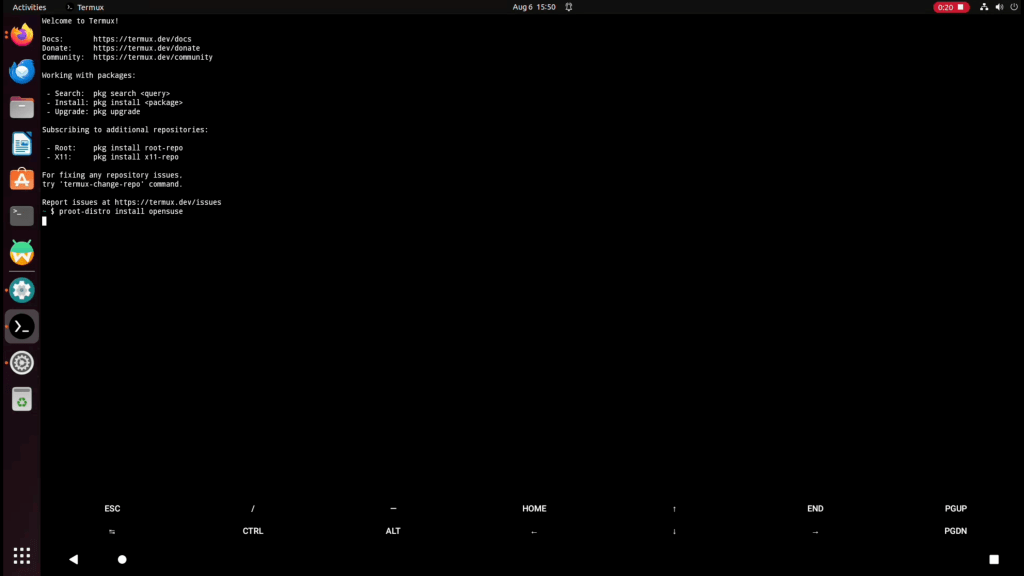
Step 10: Now login to Opensuse with below command.
proot-distro login opensuse
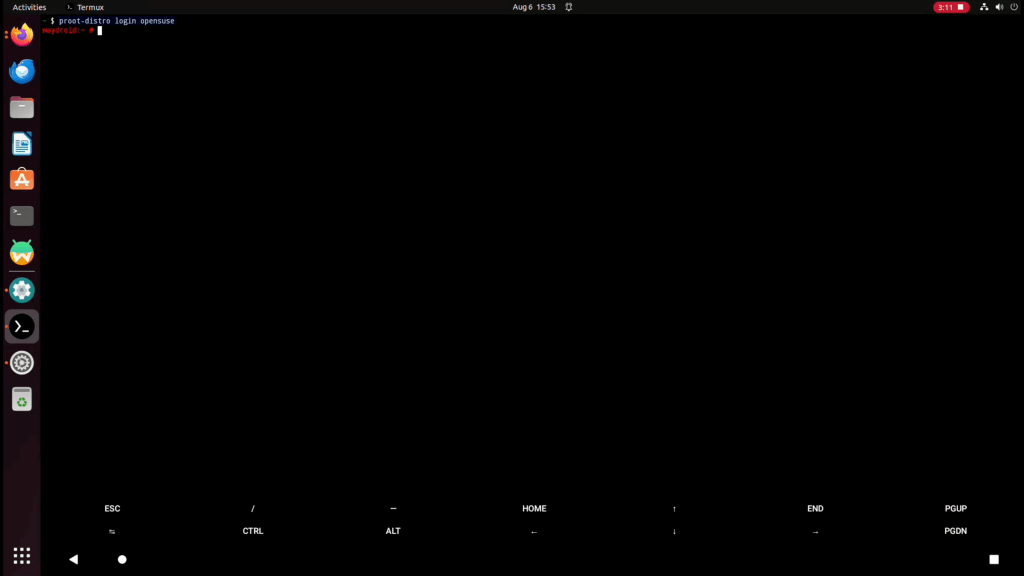
Here is youtube video for quick visual reference
Step 11: Type below command to install Alpine Linux, Make sure to logout from existing OS login by typing exit.
proot-distro install alpine

Step 12: Type below command to login in Alpine Linux
proot-distro login alpine

Here is youtube video for visual reference
Stay tuned for more updates
 TechnoFunctionalLearning
You must be logged in to post a comment.