Learn to Install Docker AI model Runner and Integrate with OnlyOffice for AI Powered Writing/Summarization/Translation/Re-writing & much more.
Docker Desktop:
The #1 containerization software for developers and teams
Streamline development with Docker Desktop’s powerful container tools.
Local-first LLM inference made easy
Docker Model Runner makes it easy to test and run AI models locally using familiar Docker CLI commands and tools. It works with any OCI-compliant registry, including Docker Hub, and supports OpenAI’s API for quick app integration.
Onlyoffice:
Cut down on token costs, keep your data private, and stay in full control!
https://www.onlyoffice.com/default-alt.aspx
All the tools you need to work with text documents, spreadsheets, presentations, fillable forms, and PDF files on Windows, Linux, and macOS
Kindly note that you need to have Docker Desktop & Onlyoffice installed on your Mac/Windows/Linux before starting this Article. if you do not have then download it from above official links and install it on your computer. For any assistance, you can ask questions.
Let’s get started.
Step 01: Visit Docker Hub and choose your choice of Model at below link
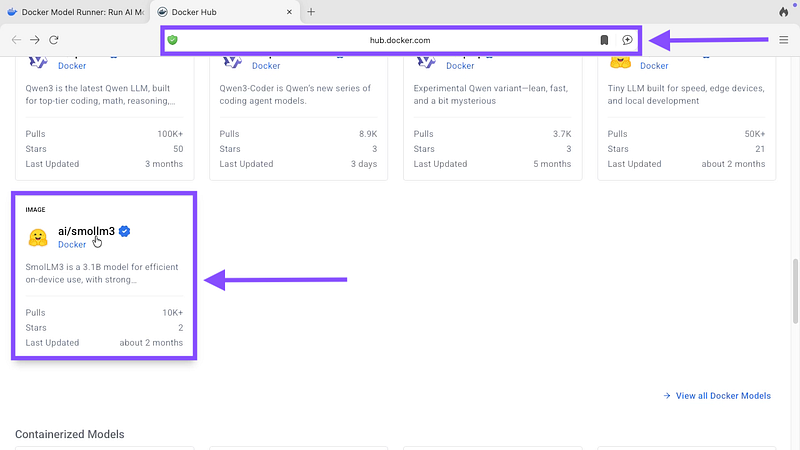
Step 02: Kindly note that after docker desktop installation, docker model runner will be activated by default and then type below command to pull your choice of AI Model.
docker model pull ai/smollm3

Step 03: Now run AI downloaded model with below command.
docker model run ai/smollm3

Step 04: Now ask your question

Step 05: Expect answer as shown below.
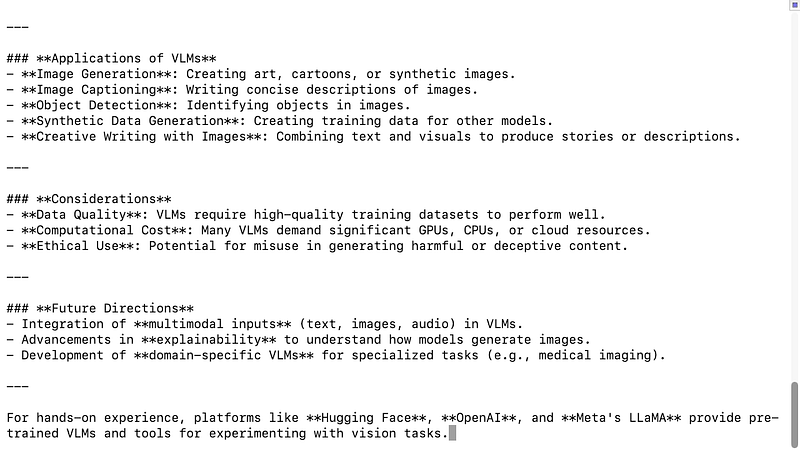
Step 06: Now to use Docker AI runner with other Applications, You need to have port 12434 available for API, You can enable docker desktop model runner API with below command

Step 07: Now Open Onlyoffice desktop and Click on AI->Settings-> and edit AI Models as show in below screenshot.

Step 08: Click on add button.
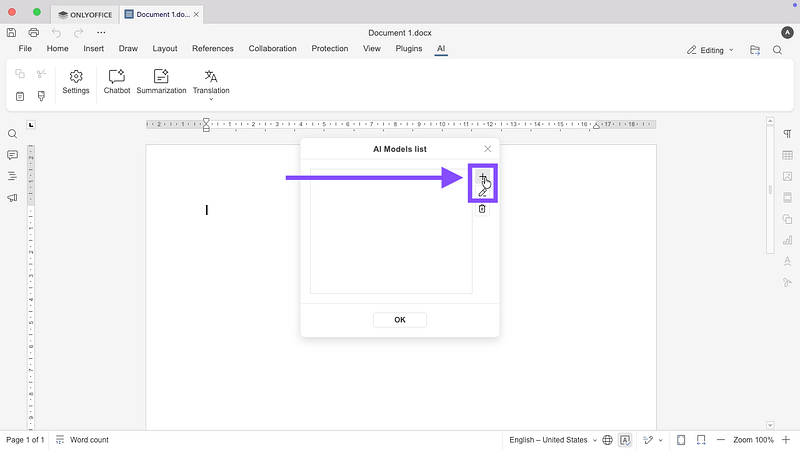
Step 09: Click on Add button
Step 10: Now add below API URL so that it can populate available AI models
http://localhost:12434/enginess/v1

Step 11: Click on ok

Step 12: Now choose the model for chatbot/summarization/translation/text analysis as shown in below screenshot.
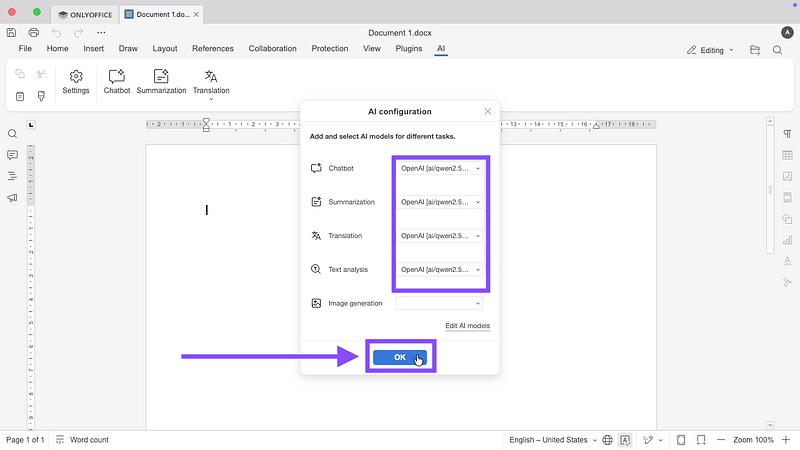
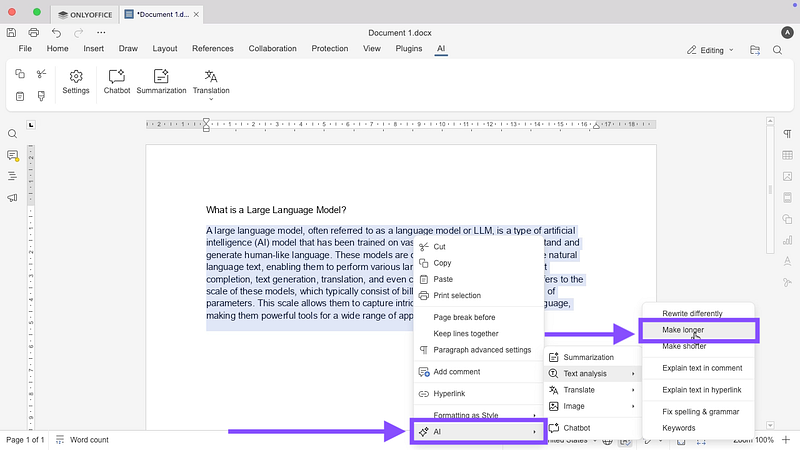
Step 13: Now write the question and select the text followed by right click to choose the option, you can choose make longer option multiple times based on how much longer text you need.

Step 14: Now you can translate AI text or your normal text in different languages.

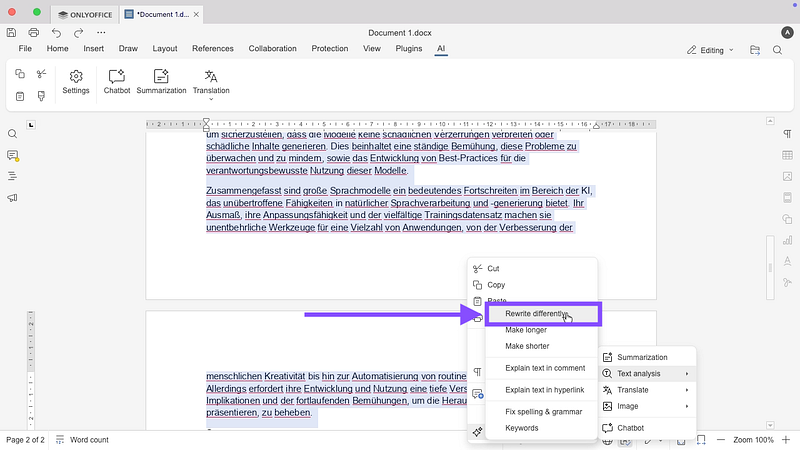
Step 15: Rewrite AI or Existing text as shown below.
Docker AI model runner is simple to Install and provide faster response.
 TechnoFunctionalLearning