Simple Odoo ERP demo on How to Create Sales Quotation/Sales Order/Material Delivery/Sales Invoice(GST)/Sales Receipt/RFQ/Purchase Order/Purchase receipt/Supplier invoice(GST)/Supplier Payment in Odoo ERP
Odoo. Open Source Apps To Grow Your Business
The main Odoo Apps include an Open Source CRM, Website Builder, eCommerce, Warehouse Management, Project Management, Billing & Accounting, Point of Sale, Human Resources, Marketing, Manufacturing & Much more.
How can I quickly Install and Run Odoo ERP
Let’s start step by step business process.
Kindly note that this Article do not include Configuration, Master data localization for GST/TDS/TCS, It will only give you Quick Overview of how Business Process Works in Odoo ERP from End User side. There are various options to process data in Odoo ERP and I will try to Include various step by step tutorials in upcoming articles.
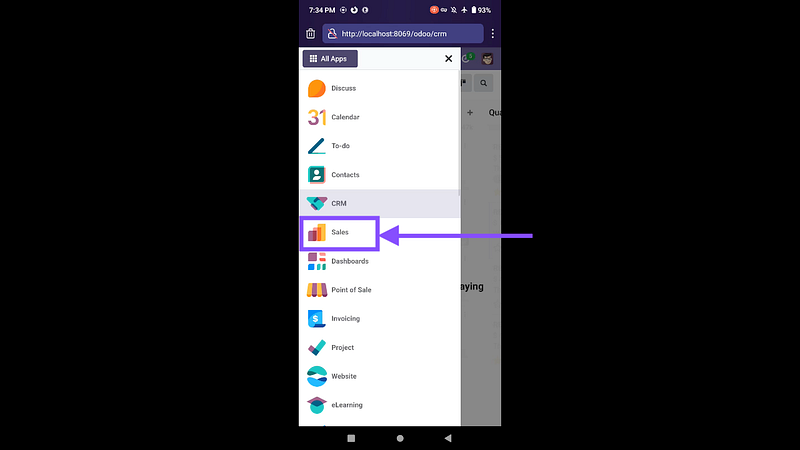
Step 01: Click on Sales in Mobile and PC
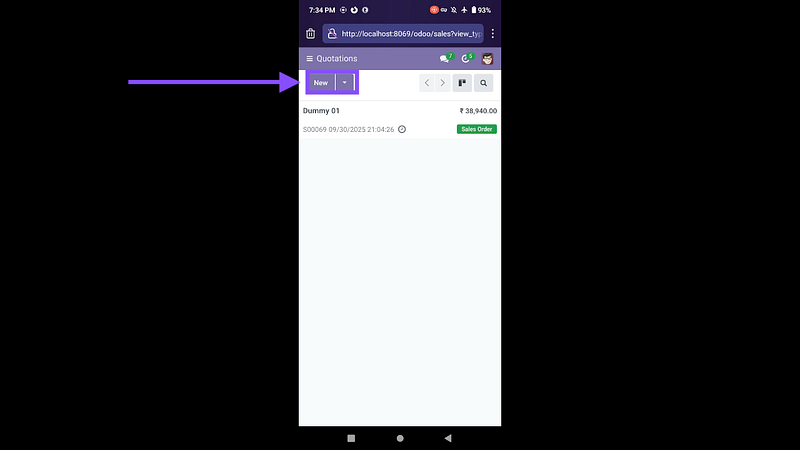
Step 02: Click on New Quotation
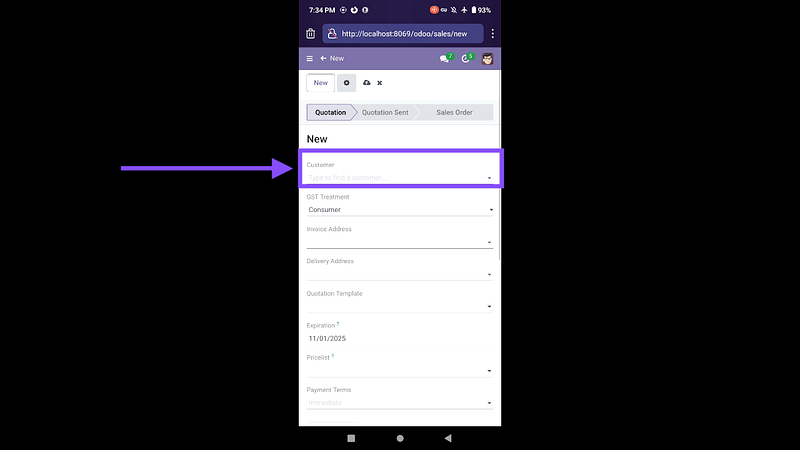
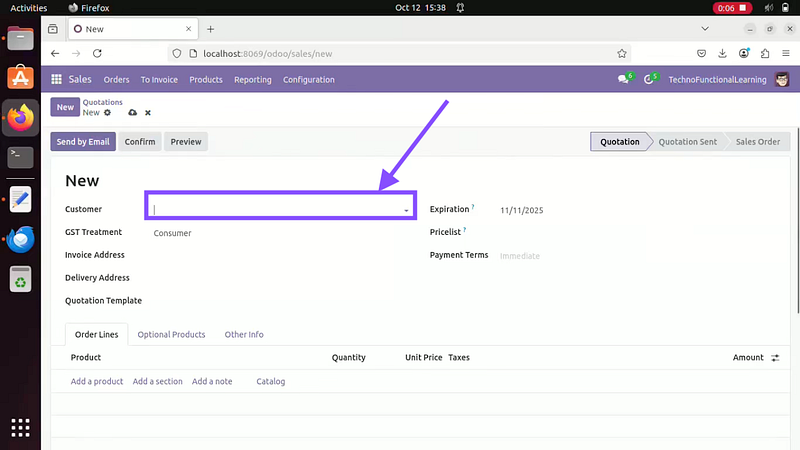
Step 03: Now Enter Customer in both Mobile and PC.
Step 04: Now Click on Add Product and search for product, it will automatically pick price and taxes based on Master data.
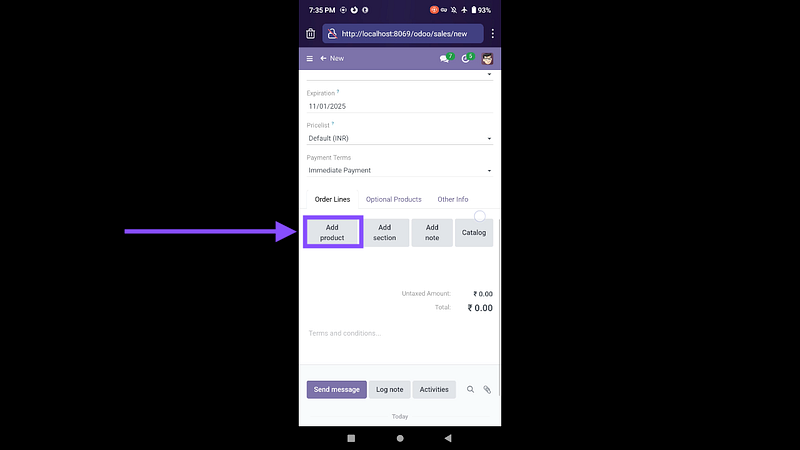
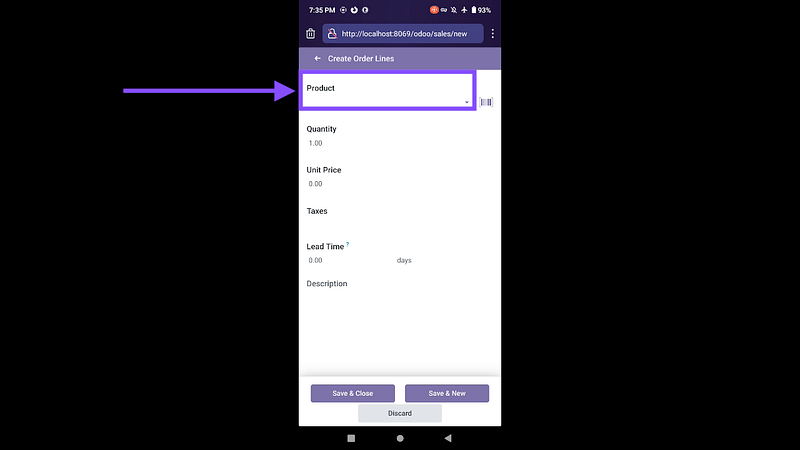
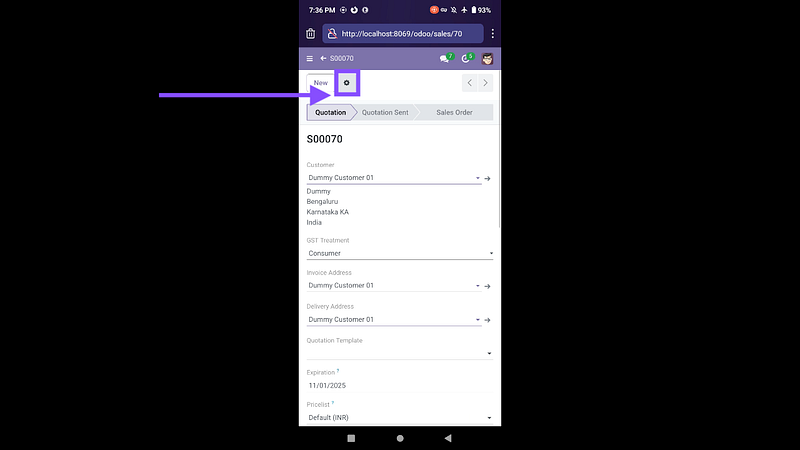
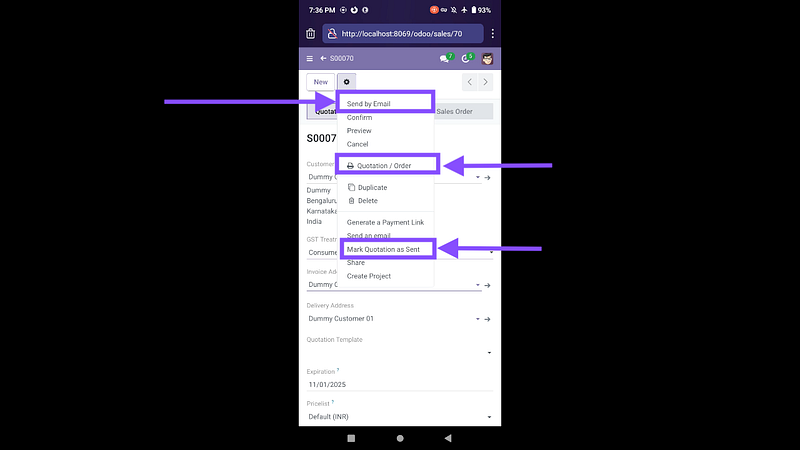
Step 05: Now click on setting to get option for send by email, print or mark as sent. If you want to sent it by email then click on the button.
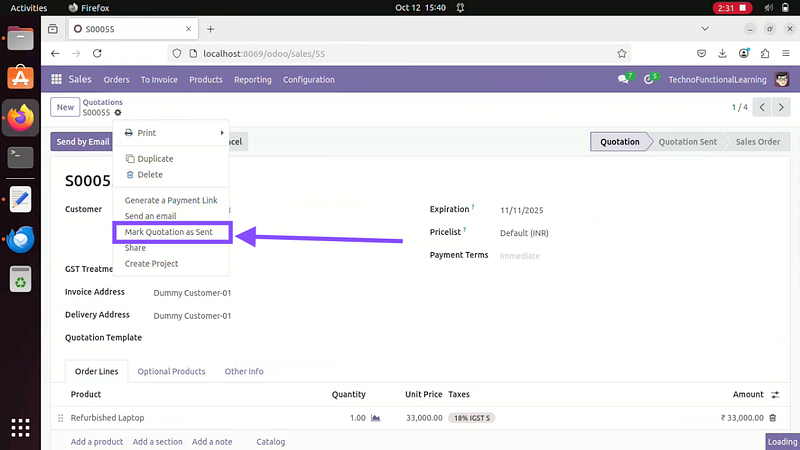
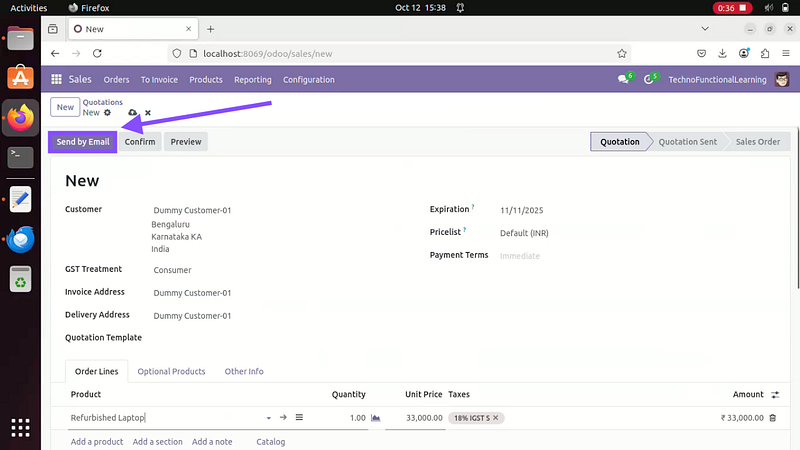
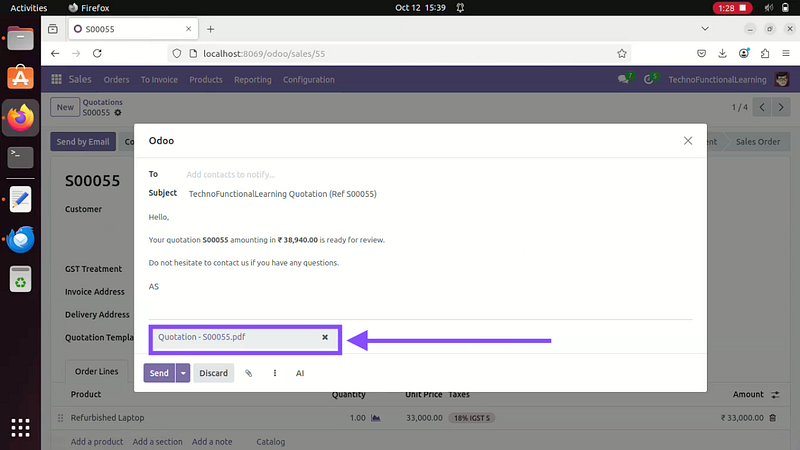
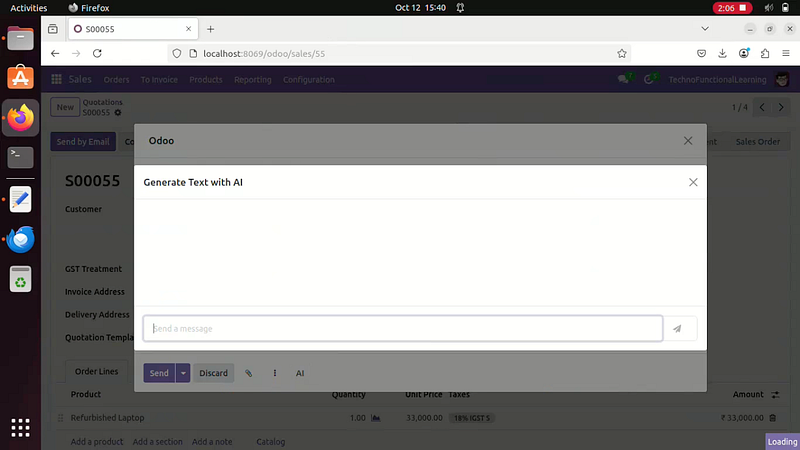
Step 06: You can get option to view PDF in email and also option to Generate text for Quotation with AI. This is How your Print for Sales Quotation will Appear in Mobile and PC.
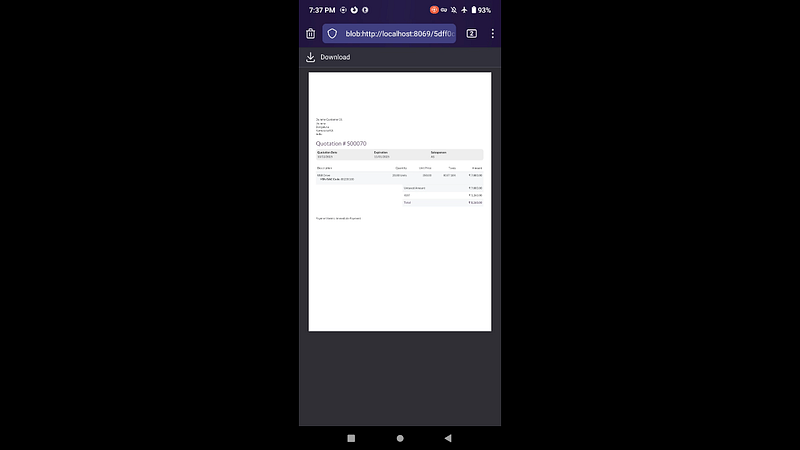
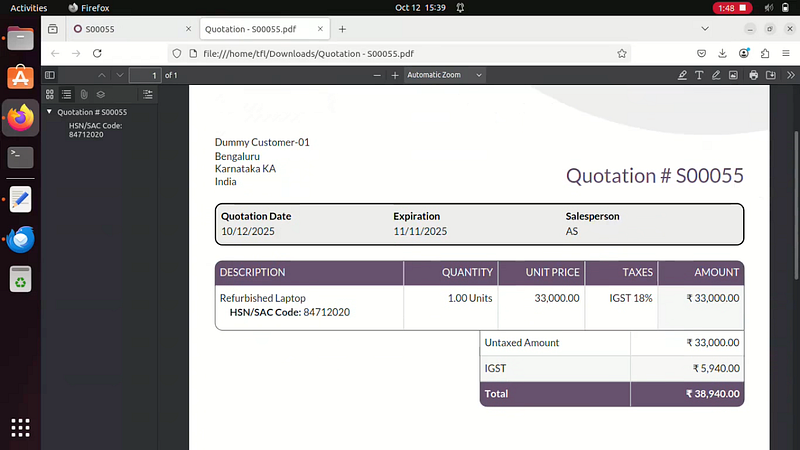
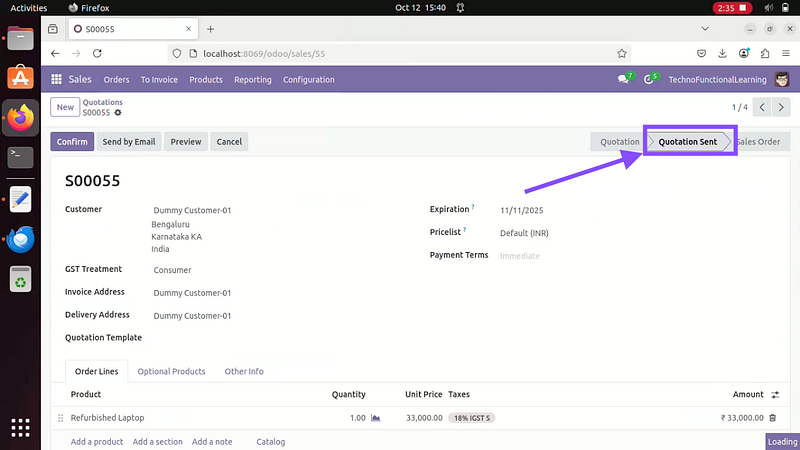
Step 07: if you do not to send via email then you can mark as sent so that status can change to Quotation sent.

Here is screencast on How to create Sales Quotation in Odoo ERP.
 TechnoFunctionalLearning