Simple demo on How to Create Material Request/RFQ/Supplier Quotation/Purchase Order/Purchase receipt/Supplier invoice(GST)/Supplier Payment/Sales Quotation/Sales Order/Material Delivery/Sales Invoice(GST)/Sales Receipt in ERPNext
What is ERPNext?
Free and Open Source Enterprise Resource Planning (ERP). ERPNext includes the following areas for managing businesses:
- Accounting
- Warehouse Management
- CRM
- Sales
- Purchase
- HRMS
- Project Management
- Support
- Asset Management
- Quality Management
- Manufacturing
- Website Management
- Customise ERPNext
ERPNext is built on the Frappe Framework, a full-stack web app framework built with Python & JavaScript.
Where is Repository?
Here is the link for Repository
https://github.com/frappe/erpnext
Where is the Official Website?
How can I quickly Install and Run on MacOS/Ubuntu/Windows
Here are Step by Step Instructions to Quickly run ERPNext with Docker Compose on Ubuntu, For Windows there will be separate article. For MacOS refer below article.
Let’s start step by step business process.
Part 01 of the Article.
Part 02 of the Article.
Let’s start step by step business process.
Kindly note that this Article does not include Configuration & Master data creation, It will only give you Quick Overview of how Business Process Works in ERPNext from End User side. There are various options to process data in ERPNext and I will try to Include various step by step tutorials in upcoming articles.
Step 01: Search for Request for Quotation list.

Step 02: Choose your Request for Quotation.

Step 03: Click on Create Supplier Quotation.

Step 04: Choose Supplier.
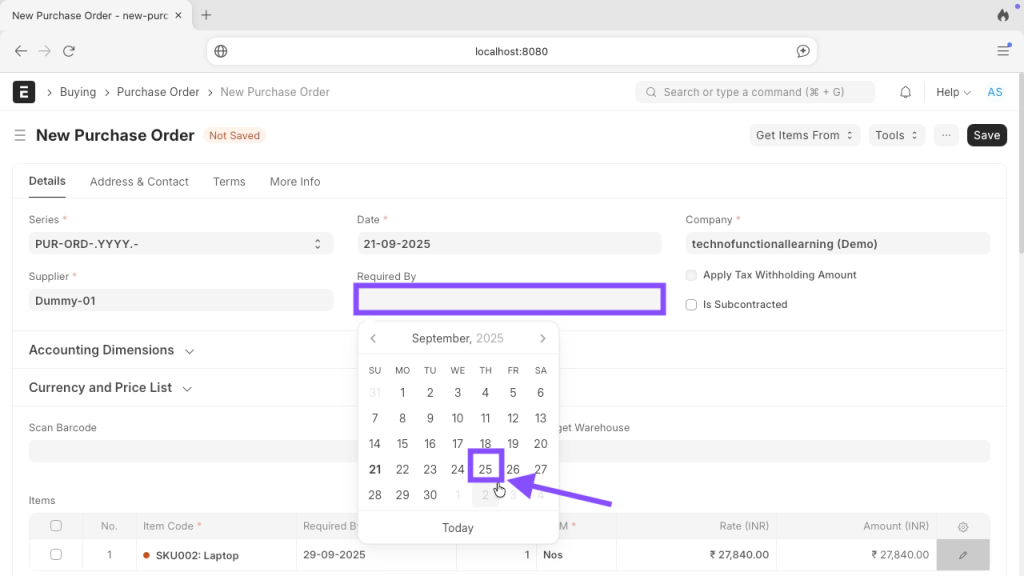
Step 05: Click on Create.

Step 06: Enter Quotation Number.

Step 07: Click on edit.

Step 08: Add or change and price and discount.

Step 09: Choose tax Category.

Step 10: Choose Incoterm.
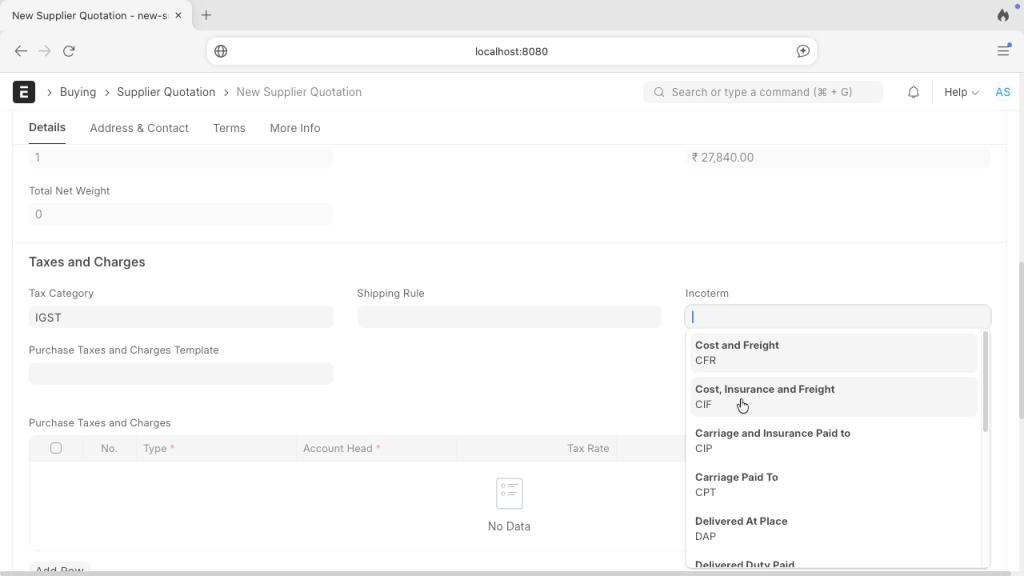
Step 11: Choose your taxes template so that rate can be picked up and calculated automatically.

Step 12: Click on save after choosing terms template.
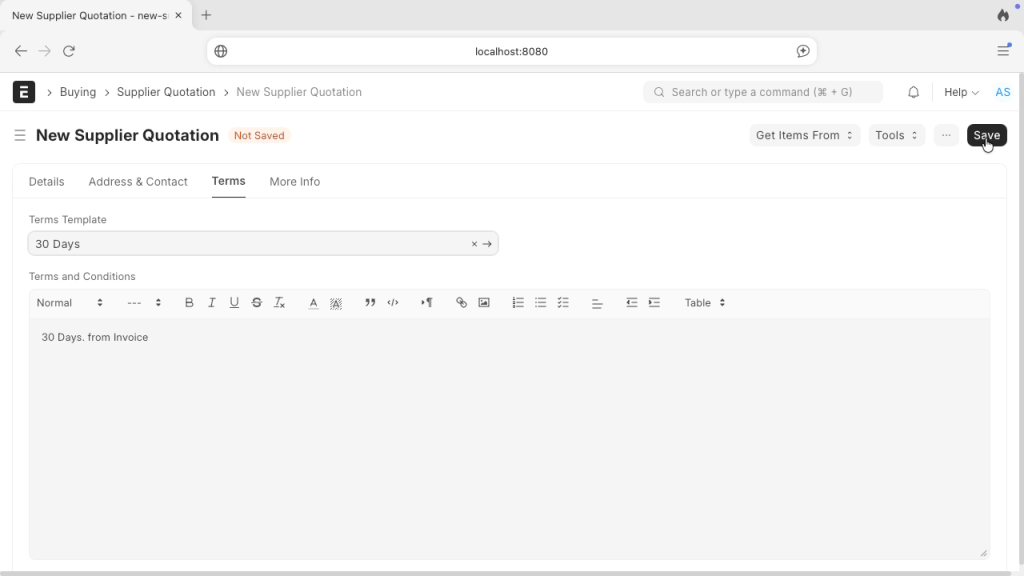
Step 13: Click on Submit.
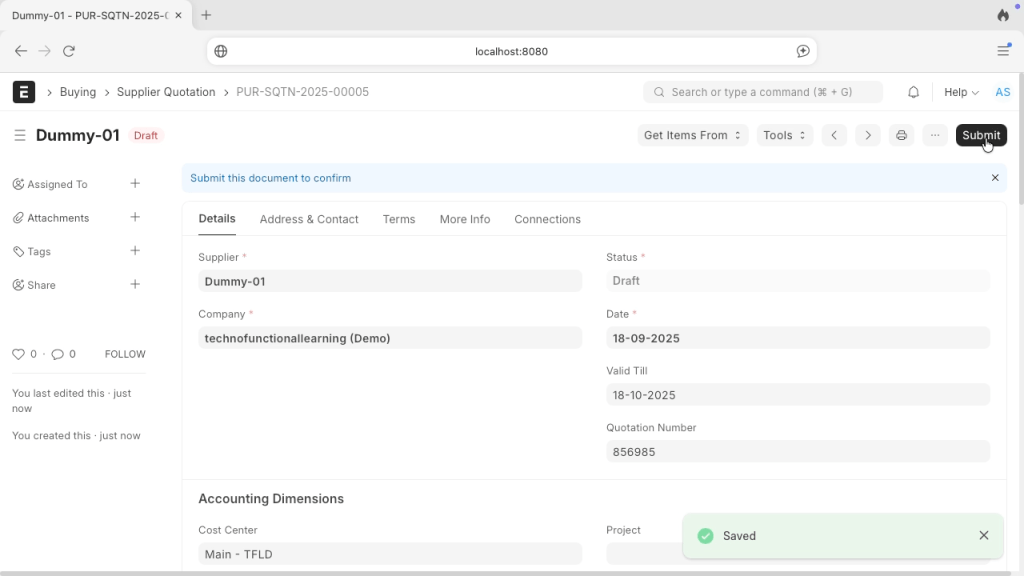
Step 14: Click on print.

Step 15: This is how Supplier Quotation print will appear.

Here is screencast on How to create Supplier Quotation in ERPNext.
Stay Tuned for Next part.
 TechnoFunctionalLearning
You must be logged in to post a comment.