Simple demo on How to Import various data from Excel & CSV in ERPNext
What is ERPNext?
Free and Open Source Enterprise Resource Planning (ERP). ERPNext includes the following areas for managing businesses:
- Accounting
- Warehouse Management
- CRM
- Sales
- Purchase
- HRMS
- Project Management
- Support
- Asset Management
- Quality Management
- Manufacturing
- Website Management
- Customise ERPNext
ERPNext is built on the Frappe Framework, a full-stack web app framework built with Python & JavaScript.
Where is Repository?
Here is the link for Repository
https://github.com/frappe/erpnext
Where is the Official Website?
How can I quickly Install and Run on MacOS/Ubuntu/Windows
Here are Step by Step Instructions to Quickly run ERPNext with Docker Compose on Ubuntu, For Windows there will be separate article. For MacOS refer below article.
Let’s start step by step business process.
Kindly note that this Article does not include Configuration & Master data creation, It will only give you Quick Overview of how you can import various data in ERPNext from Excel or CSV File.
Step 01: Prepare your excel or CSV file as per format of various transaction from available download template in ERPNext, You can download template from same step where you will see upload button in next step.

Step 02: Click on Import data

Step 03: Search and Choose Quotation.

Step 04: Choose Insert New records.

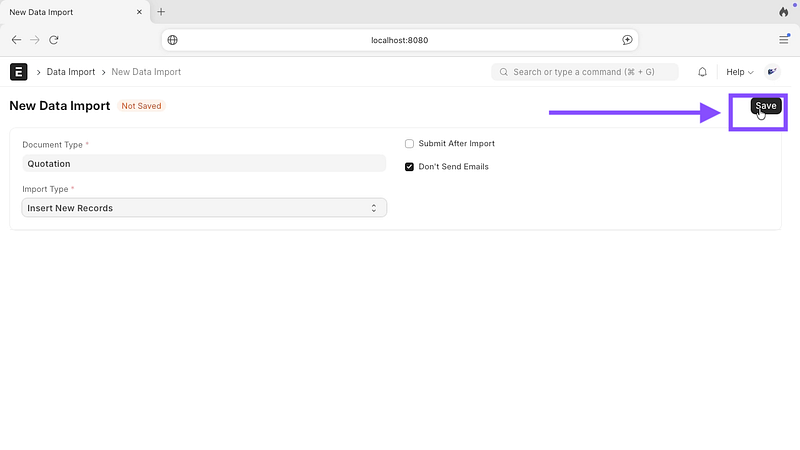
Step 05: Click on save.
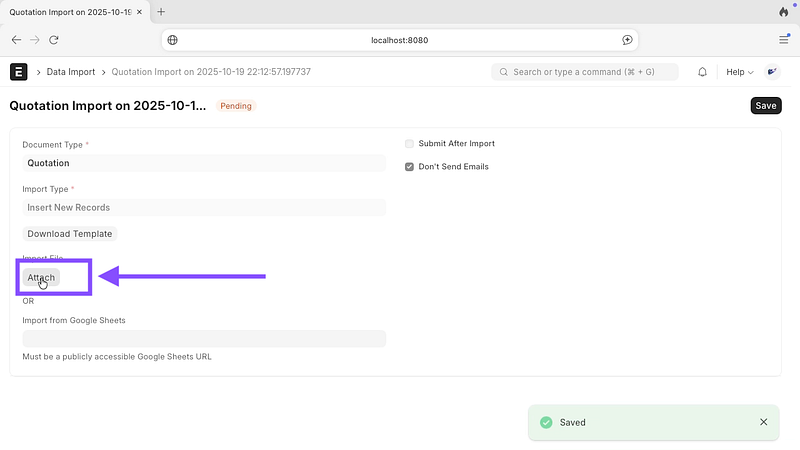
Step 06: Here you can download template or upload filled template.
Step 07: Choose your file.
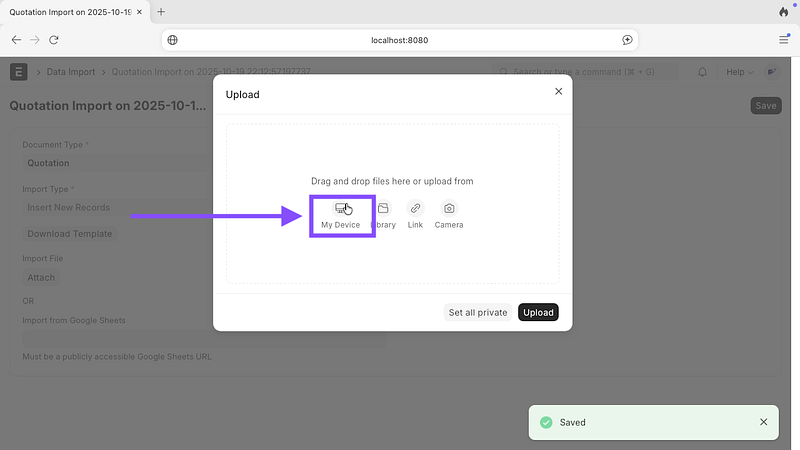
Step 08: Click on Upload.

Step 9: if you have used the template, it should automatically perform mapping, you can click on map columns to verify it.
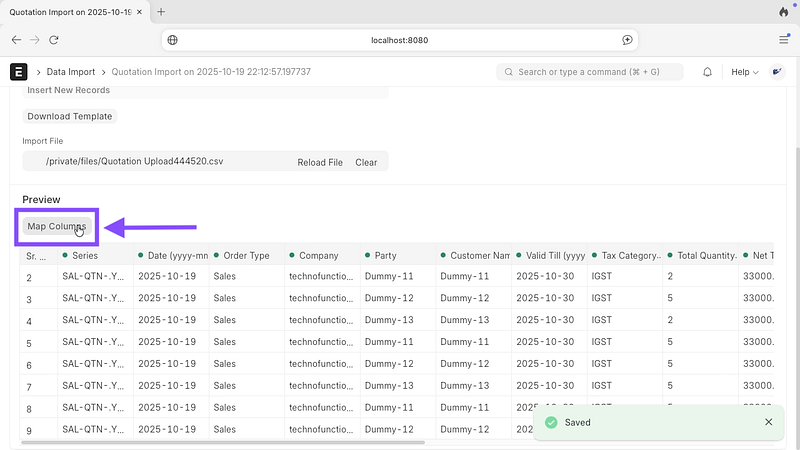
Step 10: Click on Submit.

Step 11: Now click on Start import.

Step 12: Click on Uploaded sales quotation.

Step 13: Click on Submit.
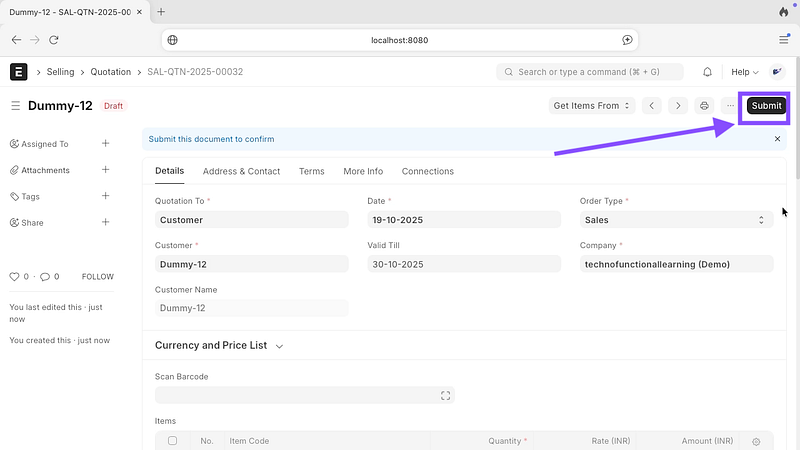
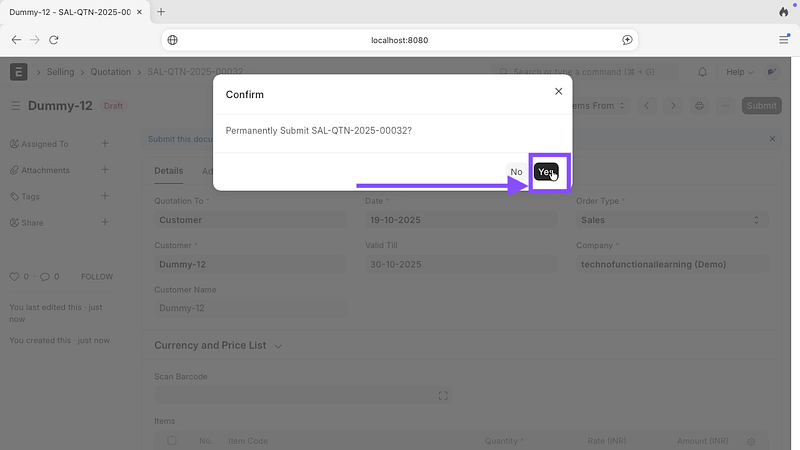
Step 14: Click on Yes.
Step 15: Click on print

Step 16: This is how your uploaded Quotation will look.

Here is screencast on How to Import Sales Quotation from Excel & CSV.
Stay Tuned for Next part.
 TechnoFunctionalLearning